Keep Your Tap List Current: Kicked Kegs and New Pours
Take a beer off the site the moment it kicks, put the new one up in a minute, and let regulars see what's just tapped.
Every plan · Photo import on Connected and up
In this article
A tap list is only useful if it's right tonight. Someone drives across town for the stout you listed, and it kicked on Tuesday. Or the new IPA everyone would come in for is pouring, and the website doesn't say so. The list on your site should change when the keg does.
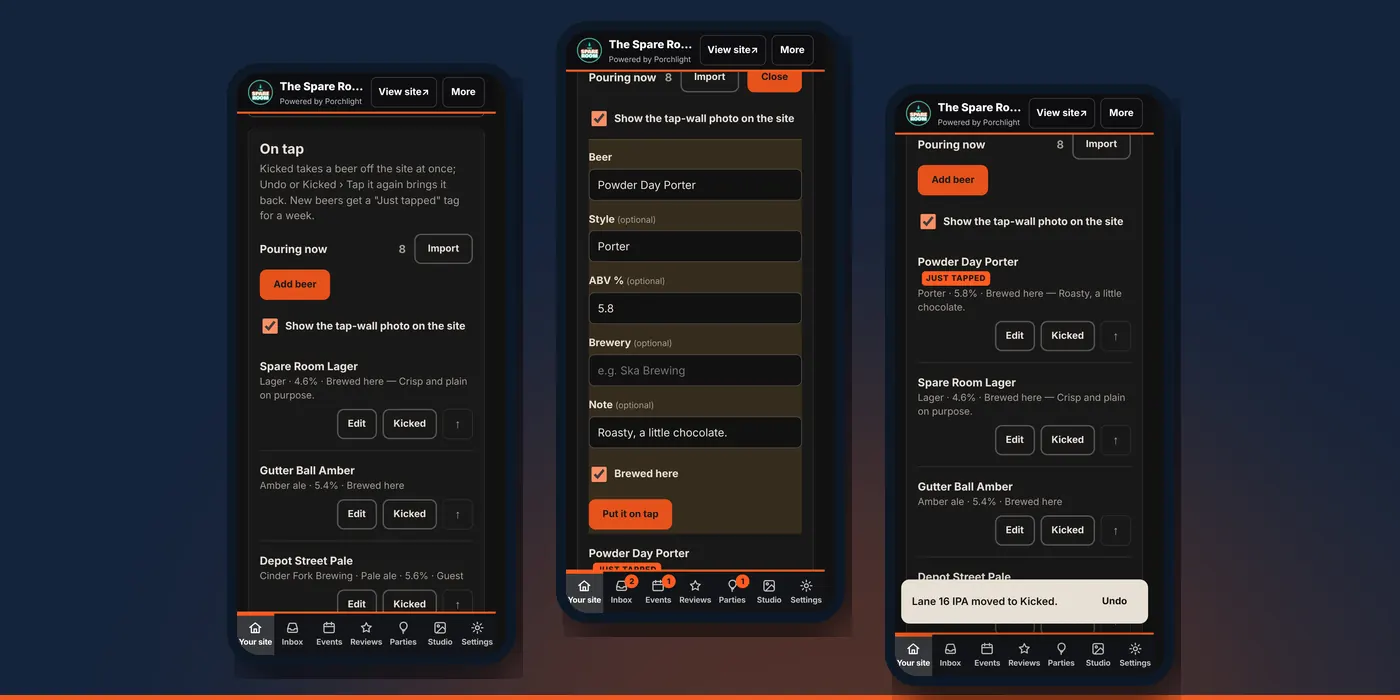
In the manager, On tap keeps the list you pour from. Each beer has a name, an optional style, ABV, brewery and a short note.
When a keg kicks
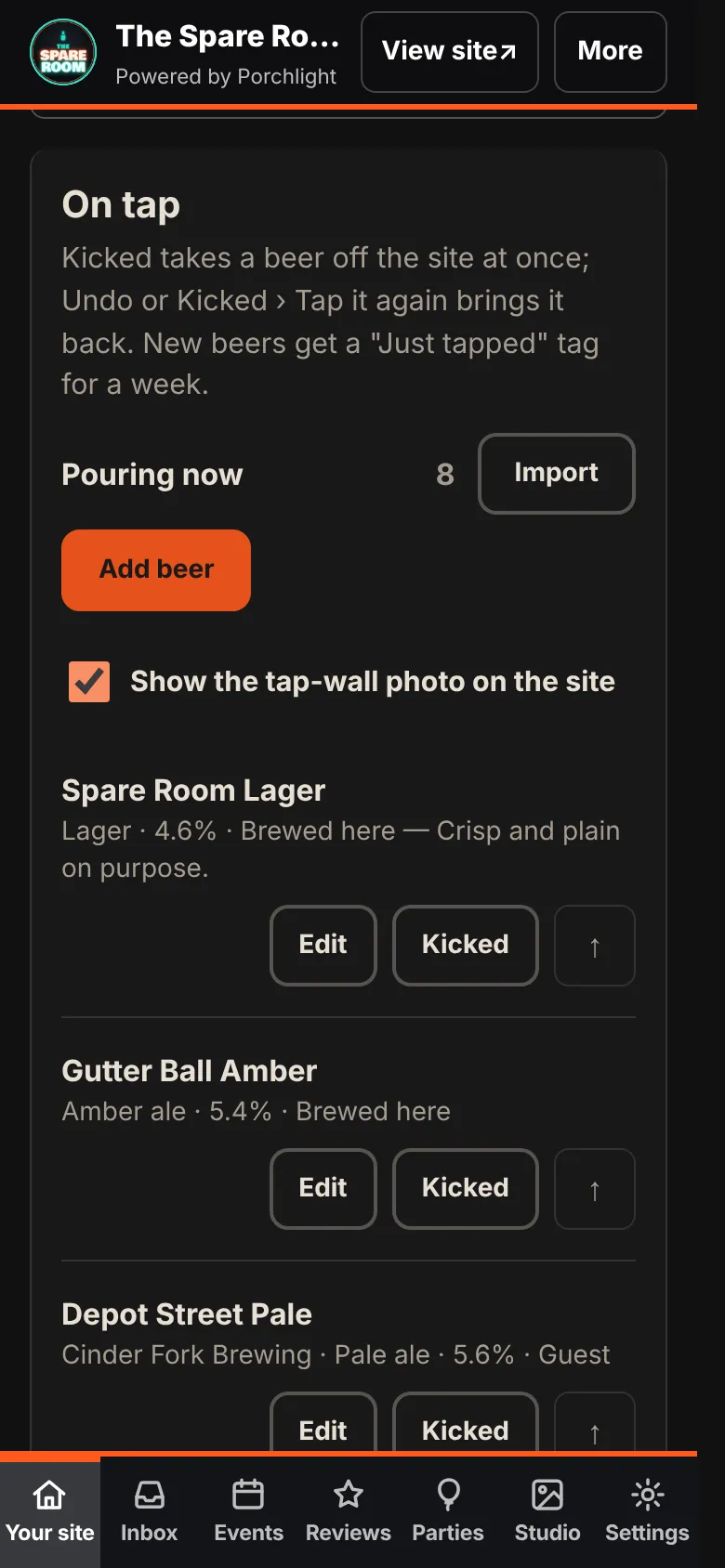
1. Open On tap. In the manager, go to Your site and choose On tap. Pouring now shows how many are on.
2. Tap Kicked on that beer. It comes off your site at once.
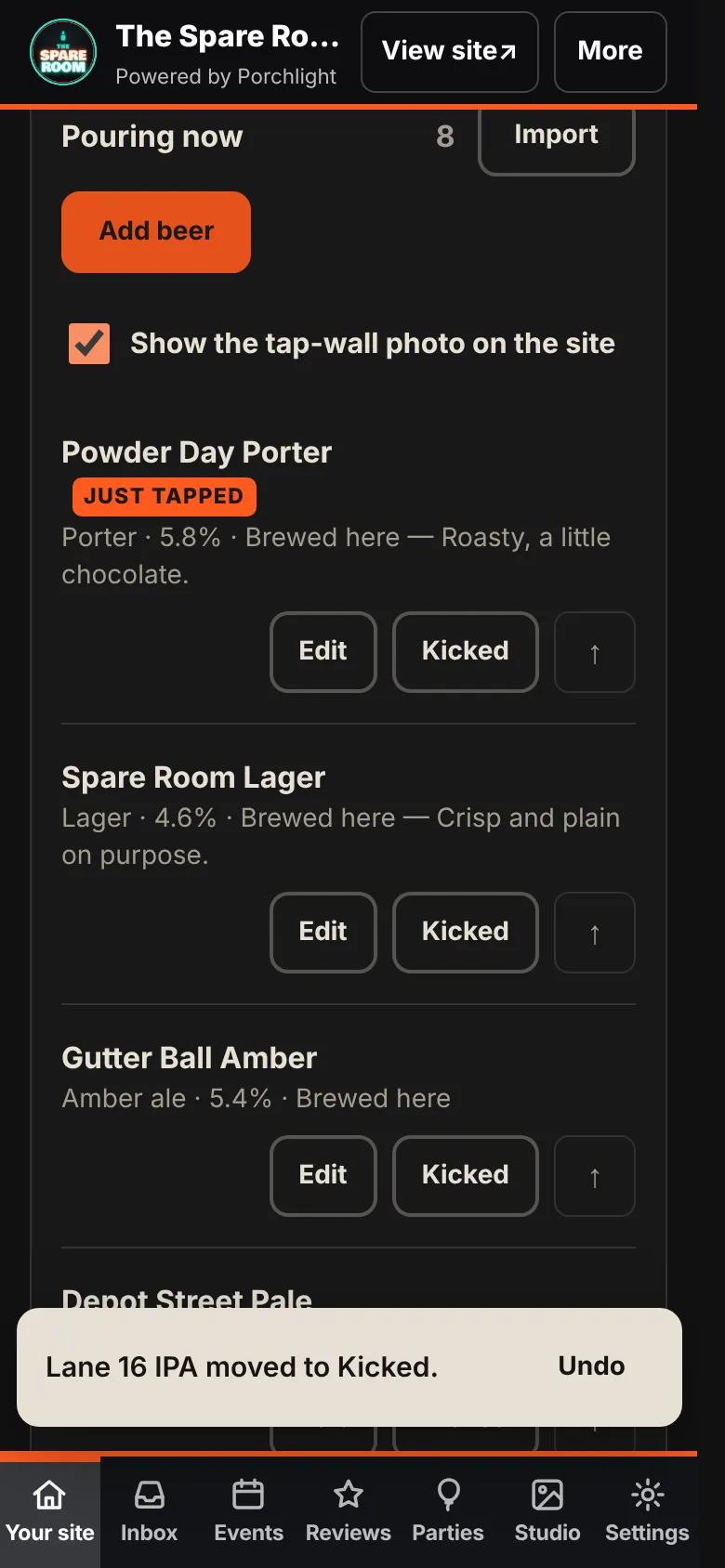
Hit the wrong one? Tap Undo in the message at the bottom of the screen. Kicked beers wait under Kicked, with a count. Tap Show them, then Tap it again, when that beer comes back on. You don't retype anything.
When a new beer goes on
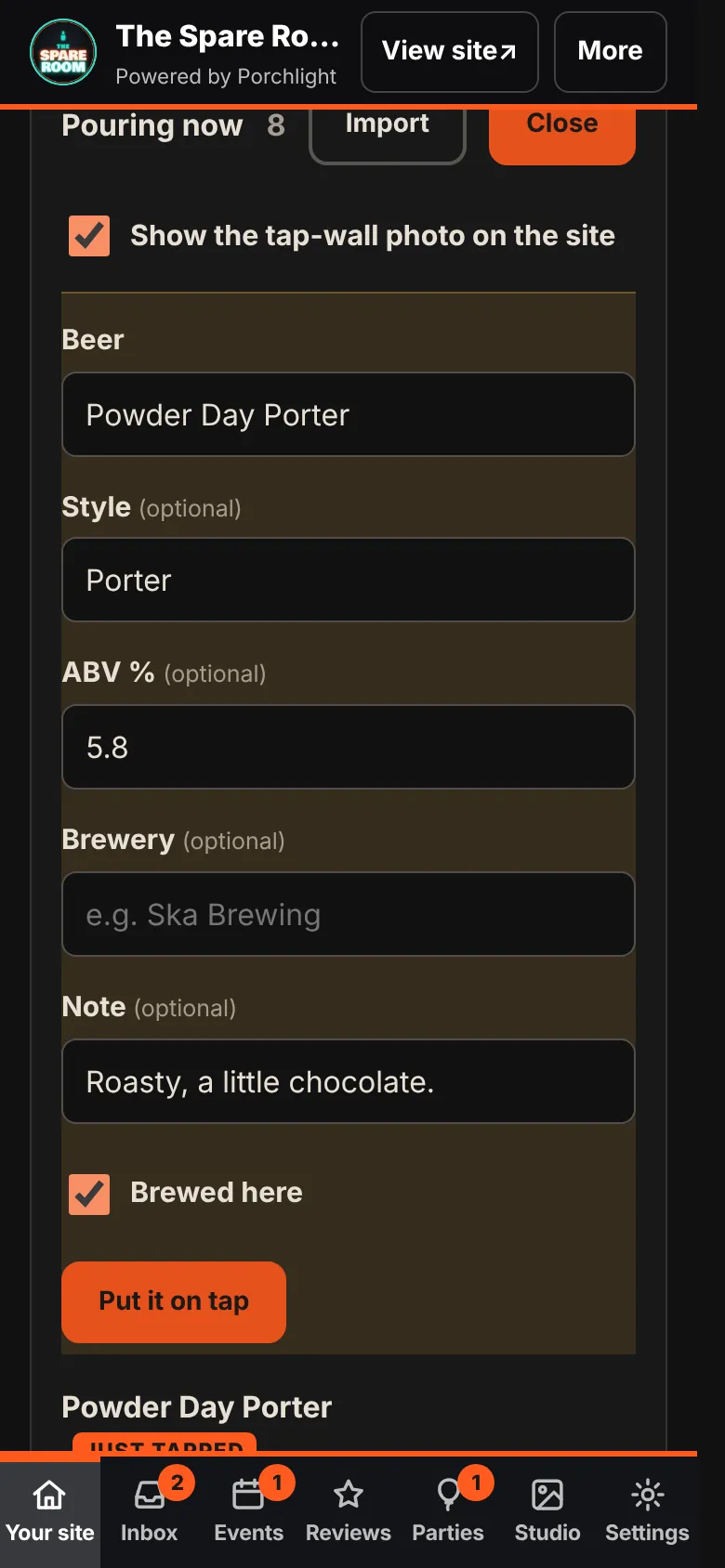
1. Tap Add beer.
2. Fill in what you know. Only the name is required. Style, ABV, brewery and a note are optional. For your own beer, leave Brewed here ticked; for a guest beer, untick it and add the brewery.
3. Tap Put it on tap. It shows on your site within a minute, with a Just tapped tag for its first week.
Use ↑ to move a beer up. The list on your site follows the order you see.
Update from a photo of the taps
On Connected and up, Import saves the typing when several handles change at once.
1. Tap Import, then Take or choose a photo. Get all the handles in the picture.
2. Tap Read the taps. The manager reads each handle and looks up the style, ABV and a line about each beer.
3. Check what it read. Untick anything wrong and fix anything close. If you change a name, Refresh details looks it up again.
4. Check the two boxes. Kick anything that isn't in this photo is on, so beers you don't see in the picture come off the list. Untick it if you only photographed part of the wall. Use this photo on the site puts your photo on the site.
5. Tap Save to the tap list. Or Throw this out to start again.
Nothing changes on your site until you save. Check ABV in particular: it's the number people ask about.
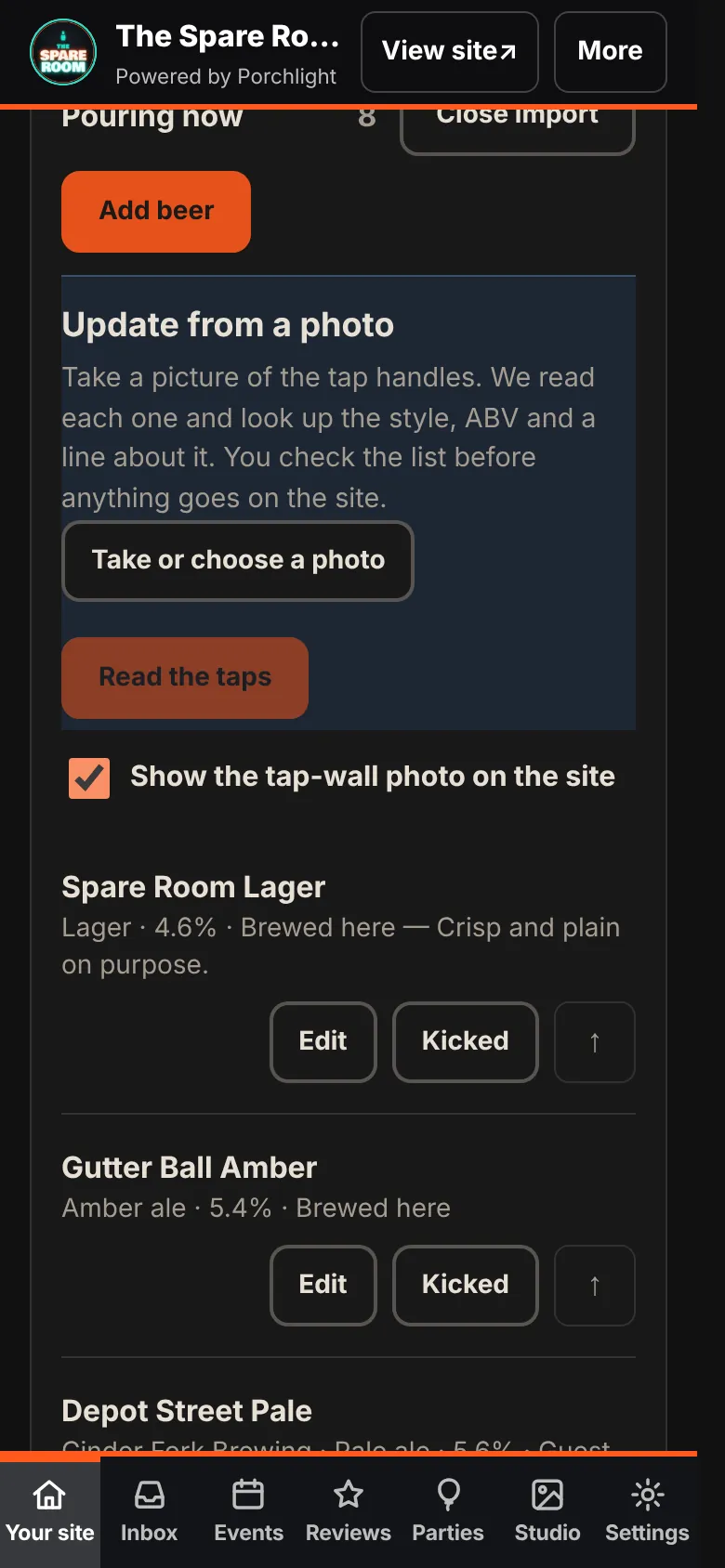
Show the tap-wall photo on the site turns that photo on or off later, without touching the list.
Good habits
- Kick it when it kicks, not at closing. It takes one tap.
- Write notes for the people deciding, not for brewers: "Roasty, a little chocolate" beats a hop list.
- Put the newest pours near the top. The Just tapped tag does the rest.
What this doesn't do
The tap list changes your website. It doesn't post to Facebook or Instagram, email your list, or change your menu. If a new beer is big news, post it there too.