Closed Today? How to Tell Customers in 30 Seconds
Snow, a power outage or a short staff: one tap writes the notice and marks today closed, so the whole site agrees.
Every Porchlight plan
In this article
An unplanned closure usually happens at the worst possible moment. You're dealing with the reason you're closed, and the website is the last thing on your mind. Meanwhile, customers are checking whether you're open.
Posting a notice isn't enough if the rest of the page disagrees. A banner that says "Closed today" above a line that says "Open until 10 PM" makes people call you, or worse, drive over. Closed today? fixes both at once.
Close for today
1. Open the Notice section. In the manager, go to Your site and choose Notice. Closed today? sits at the top.
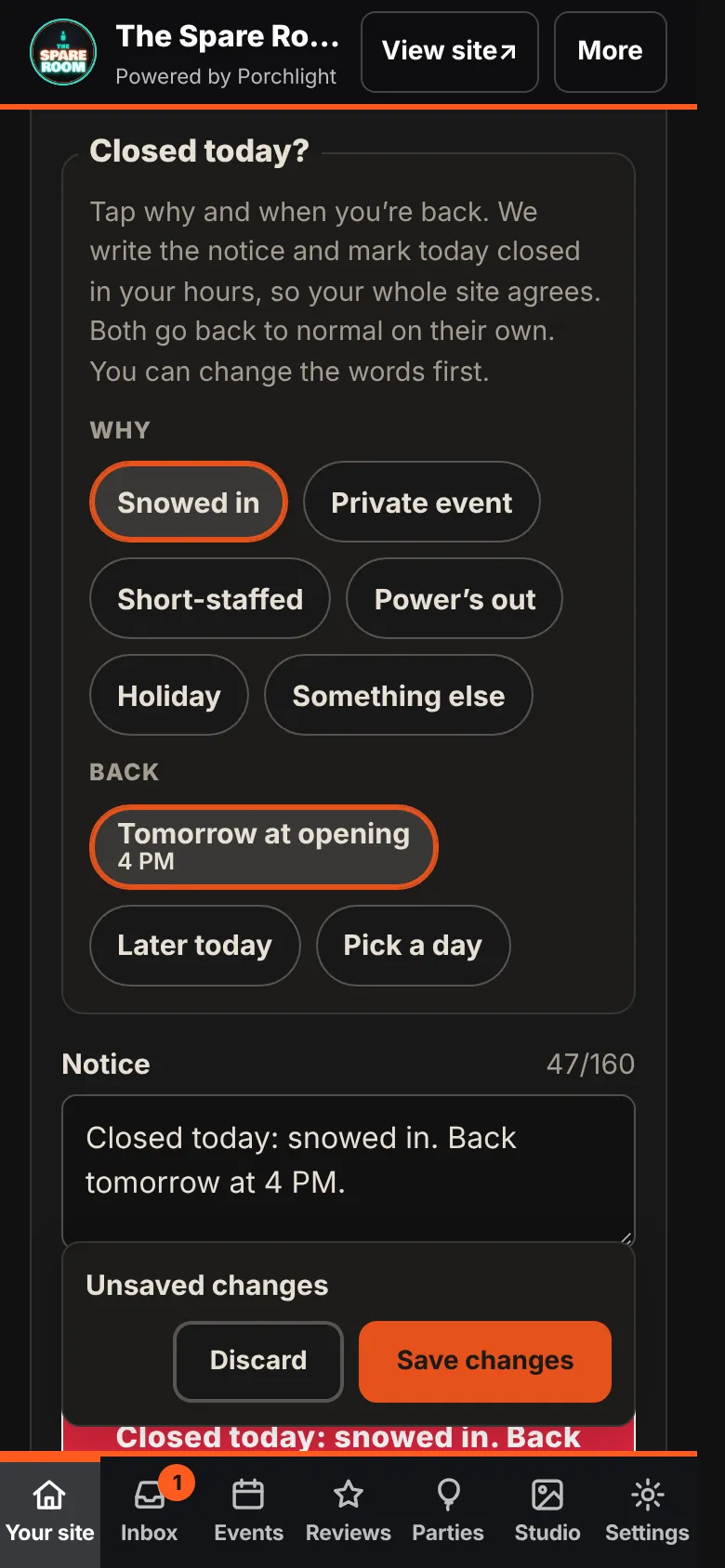
2. Tap why. Snowed in, Private event, Short-staffed, Power's out, Holiday, or Something else for your own words.
3. Tap when you're back. Tomorrow at opening uses your saved hours, so it already knows the time. Later today asks for a time. Pick a day covers a longer closure.
4. Check the words. The notice is written for you, for example "Closed today: snowed in. Back tomorrow at 11 AM." Change anything you like. A preview below shows how it will look on your site.
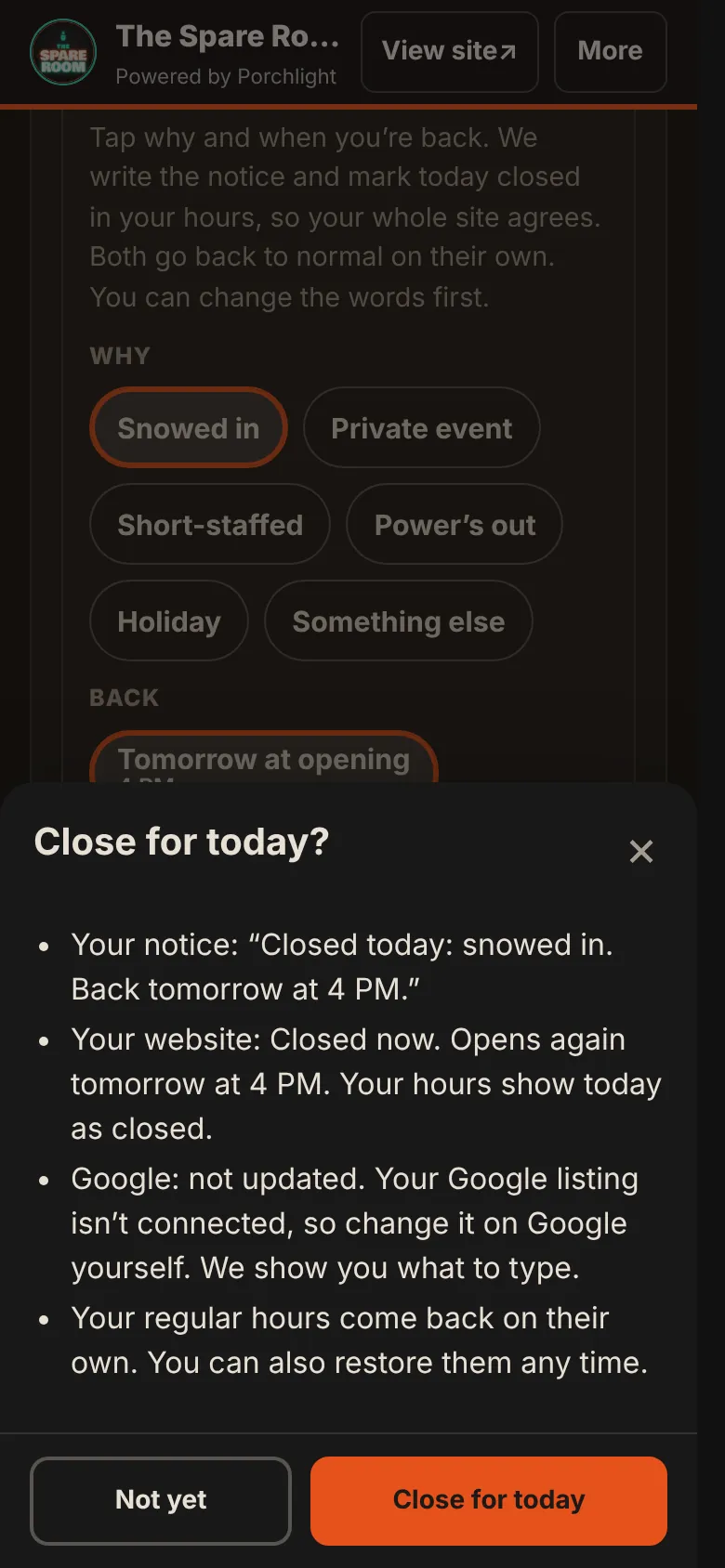
5. Tap Close for today. A short review lists what will change: the notice, what your website will say, and what happens with Google. Tap Close for today again to confirm.
What customers see
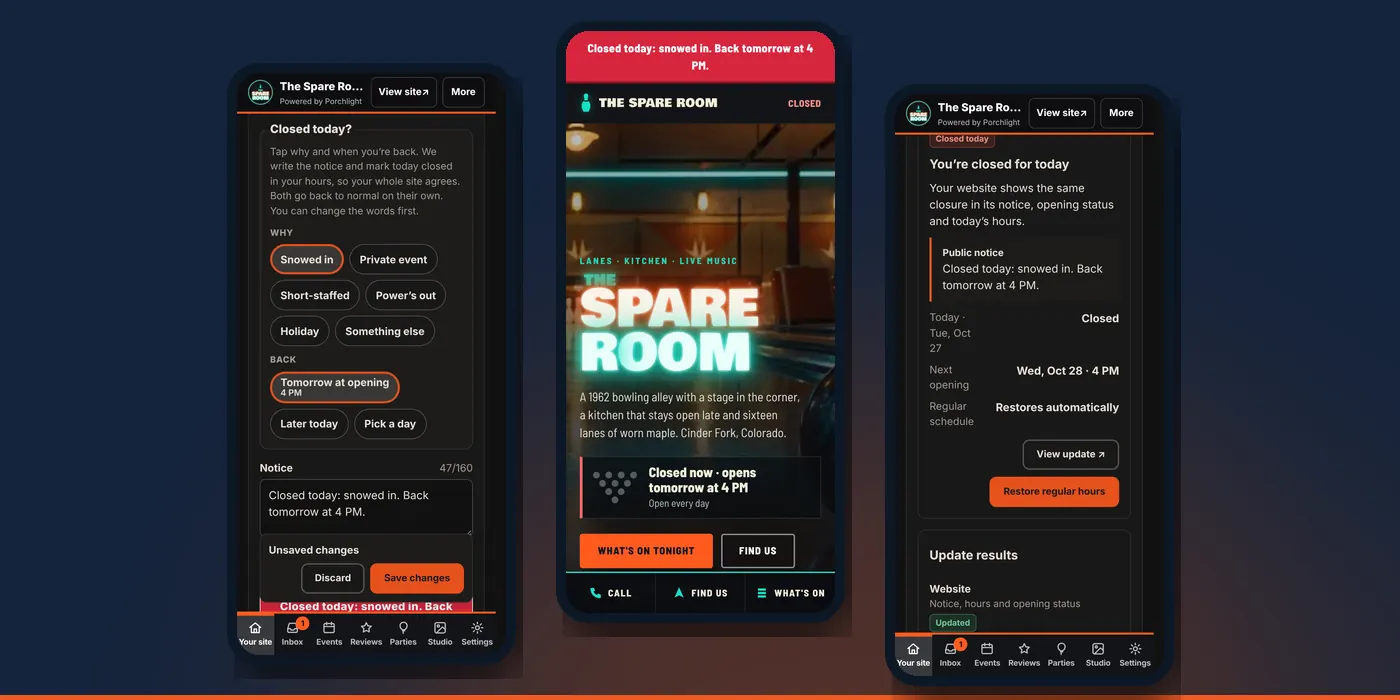
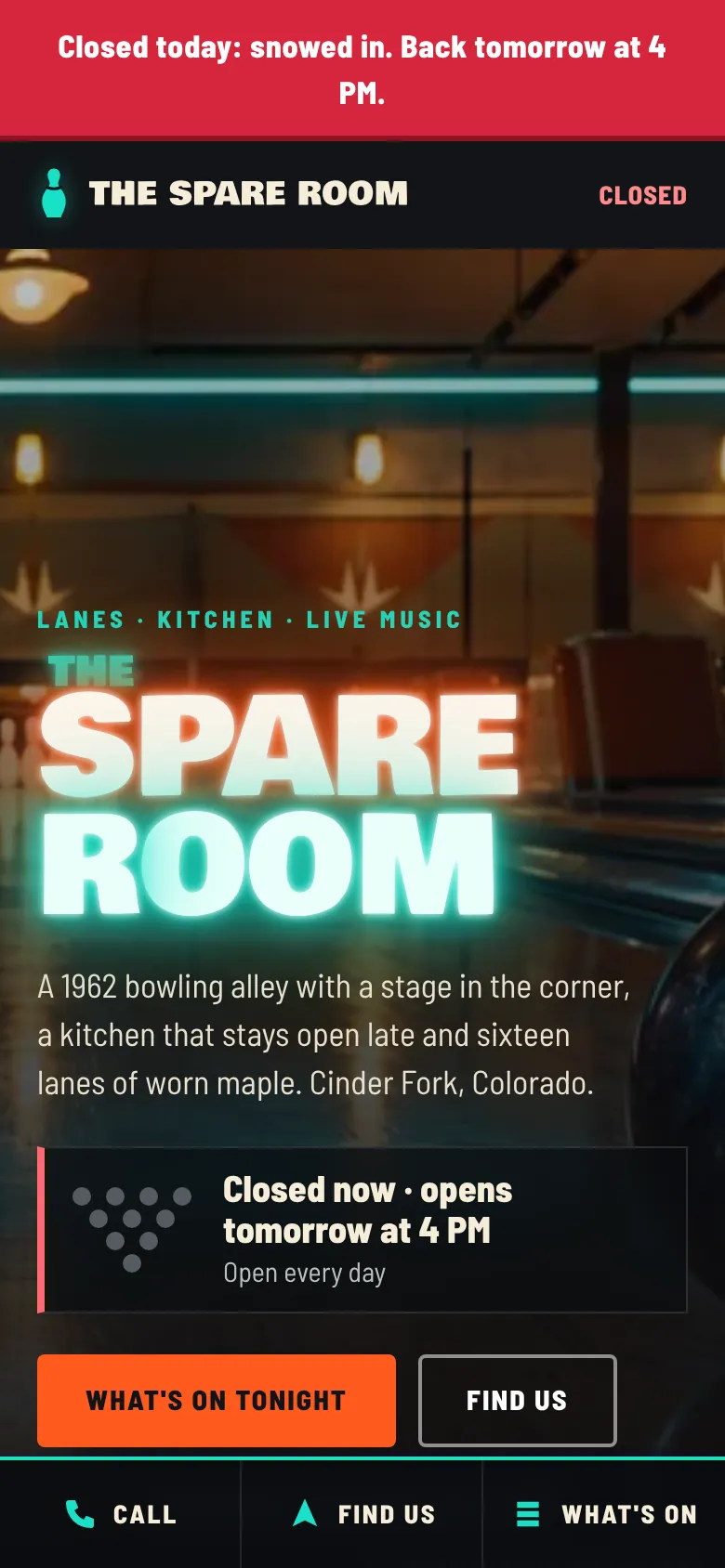
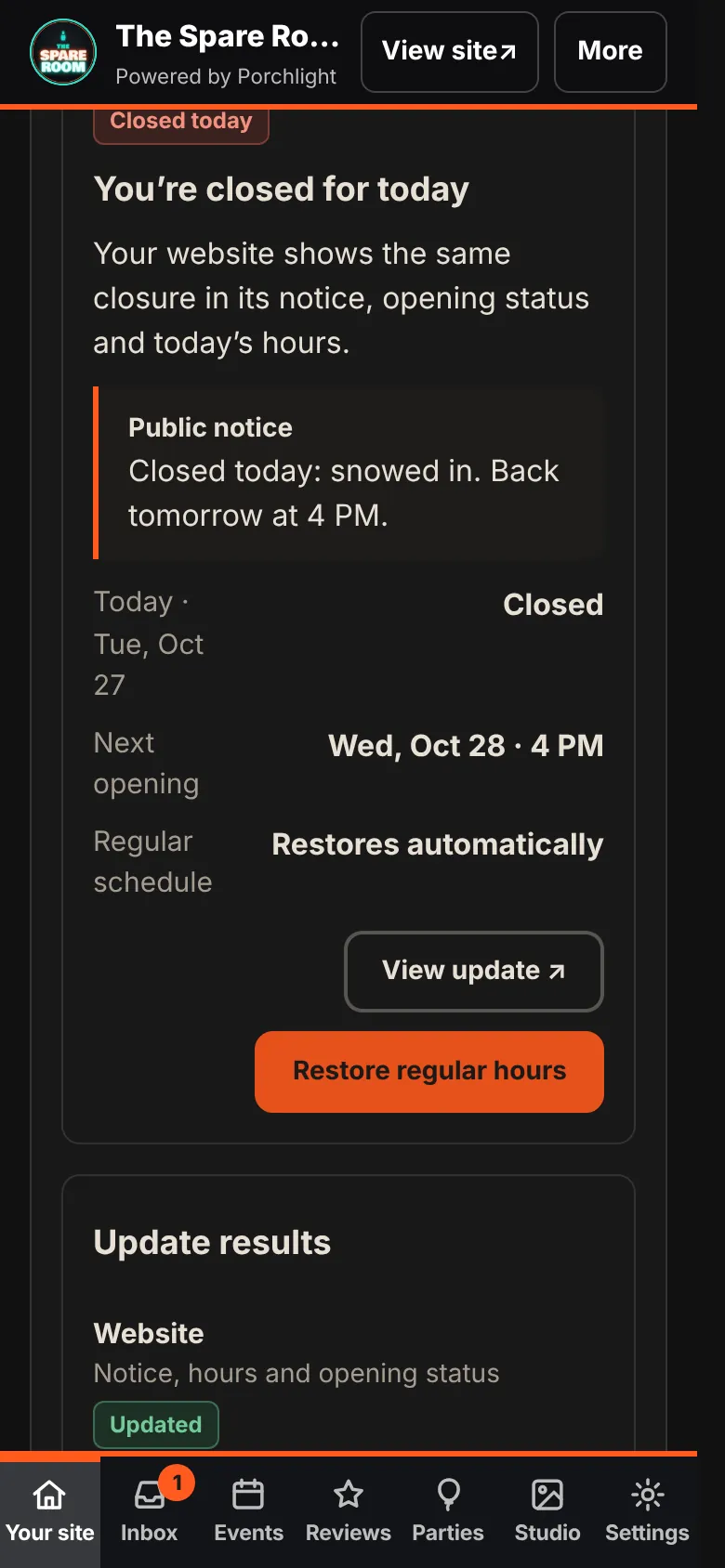
Within a minute, your site shows the notice at the top, says Closed where it normally says open, and shows today's hours as closed. Customers get one consistent answer.
Reopening
Back in the manager, a You're closed for today panel shows what the site says and when it says you'll open again. If you get open sooner than planned, tap Restore regular hours. Your normal hours come back and the closure notice comes down. If you do nothing, everything goes back to normal on its own after the closure ends.
Google and social
The review tells you what happens with Google before you confirm. If your plan includes Google and your listing is connected, the closure is ready to go to Google as special hours for the day. If not, the review says Google wasn't updated and shows what to type on Google yourself. The notice isn't posted to Facebook or Instagram. If your regulars watch your social pages, post it there too.
Your email list
On Connected and up, with your email list on, closing for today also leaves a ready-to-send email in your Inbox, with the same words as the notice. Nothing goes out until you open it and press send. Below the notice, Email it to your list opens the same email straight away. Emailing your regulars covers the rest.
Other notices
Not every notice means you're closed. For something like "Closed Saturday for a private party" or "Kitchen opens at 5 today," type it in the Notice box, set Take it down after to the last day it applies, and tap Save changes in the Unsaved changes bar. It disappears on its own the day after that date. On Connected and up, a new notice also suggests an email to your list, waiting in your Inbox for you to send or skip.
For holidays you know about in advance, temporary hours are the better tool.