How to Set Holiday Hours Without the Last-Minute Scramble
Enter the whole holiday week once, weeks ahead, and let your normal hours come back on their own.
Every Porchlight plan
In this article
Most holiday-hour mistakes are a timing problem, not a knowledge problem. The owner knows they're closed Thanksgiving Day. The website still shows normal hours because nobody had a spare minute the night before. A customer checks on a phone, drives over, and finds the door locked.
The fix is to enter the change early, when you're making the schedule anyway. Porchlight calls these temporary hours. They replace your normal hours for the dates you pick, show a banner while they're on, then switch off by themselves.
Set them up
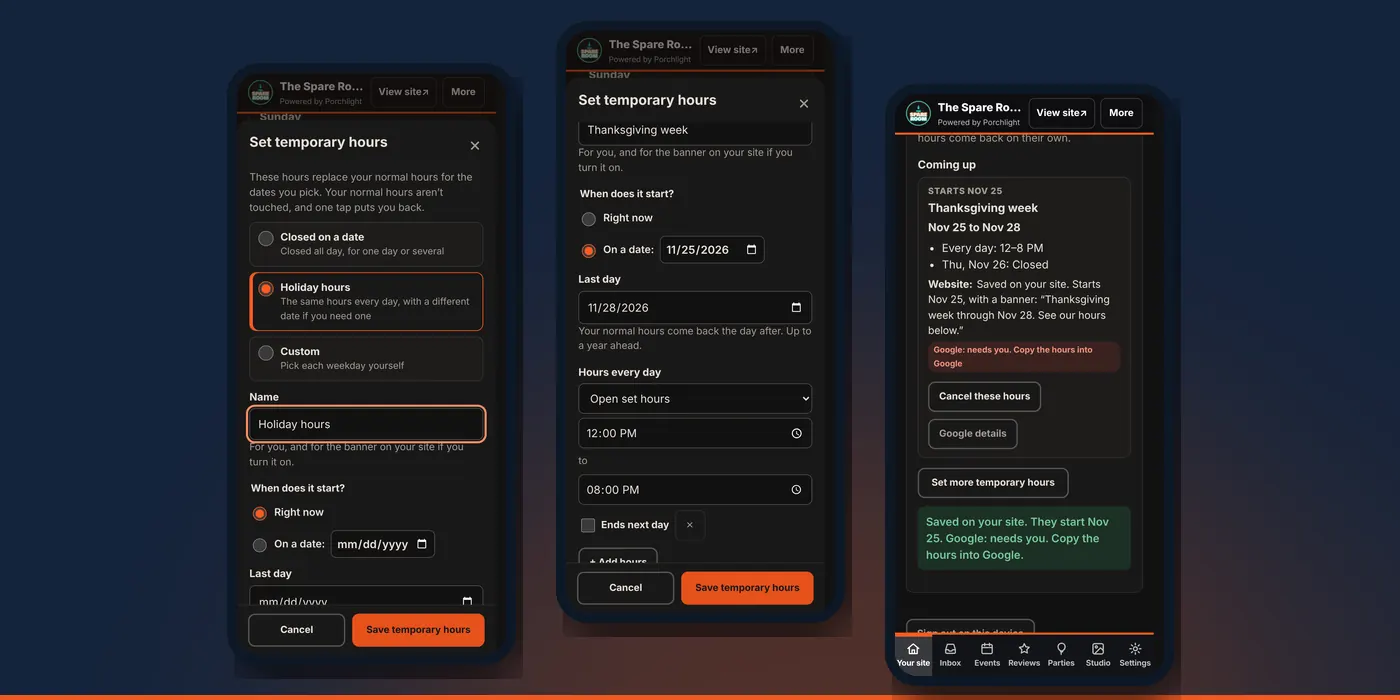
1. Open the Hours section. In the manager, go to Your site, choose Hours, and tap Holiday or a closed day? Set temporary hours.
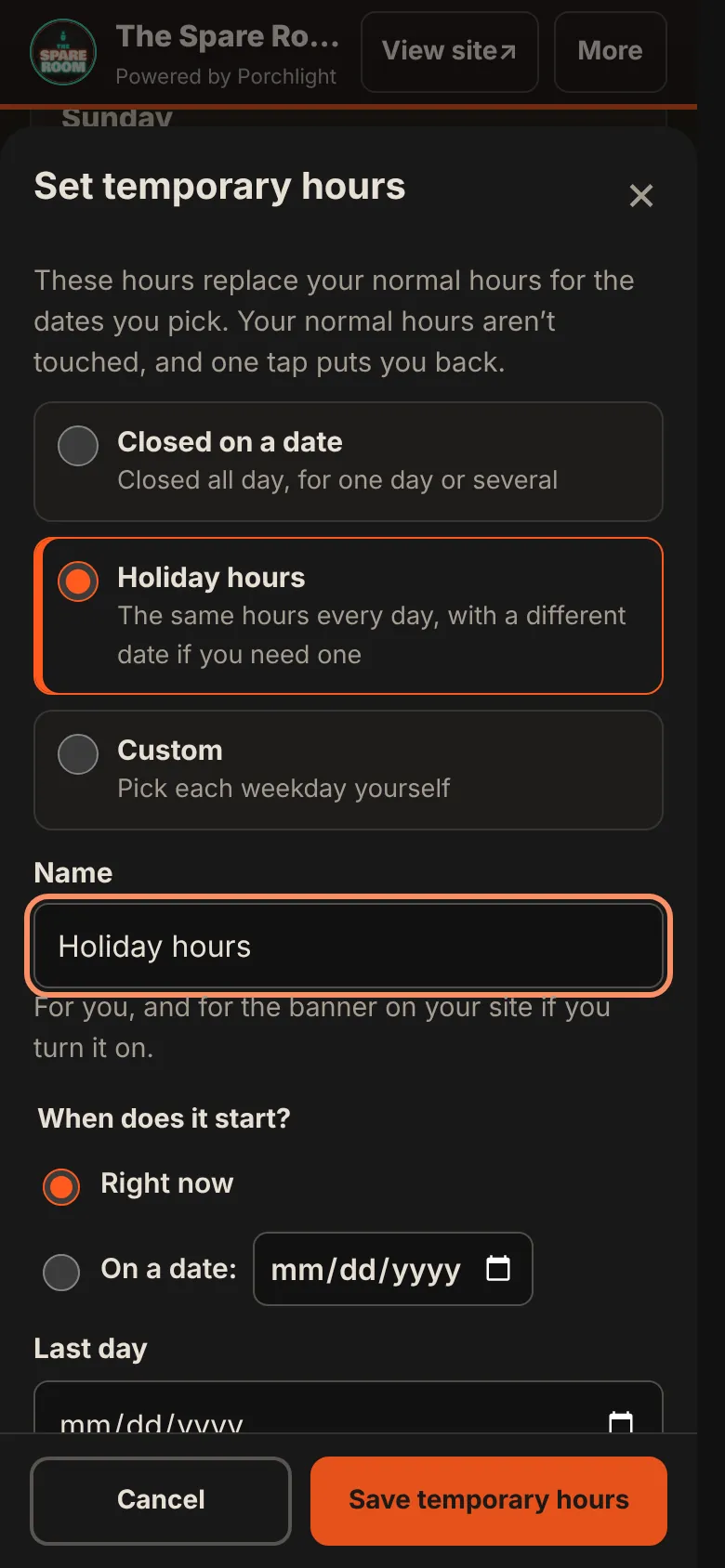
2. Pick a starting point. Closed on a date covers one closed day or several. Holiday hours uses the same hours every day, with room for one date that's different. Custom lets you set each weekday yourself.
3. Name it. "Thanksgiving week" works. The name is for you, and for the banner on your site if you turn it on.
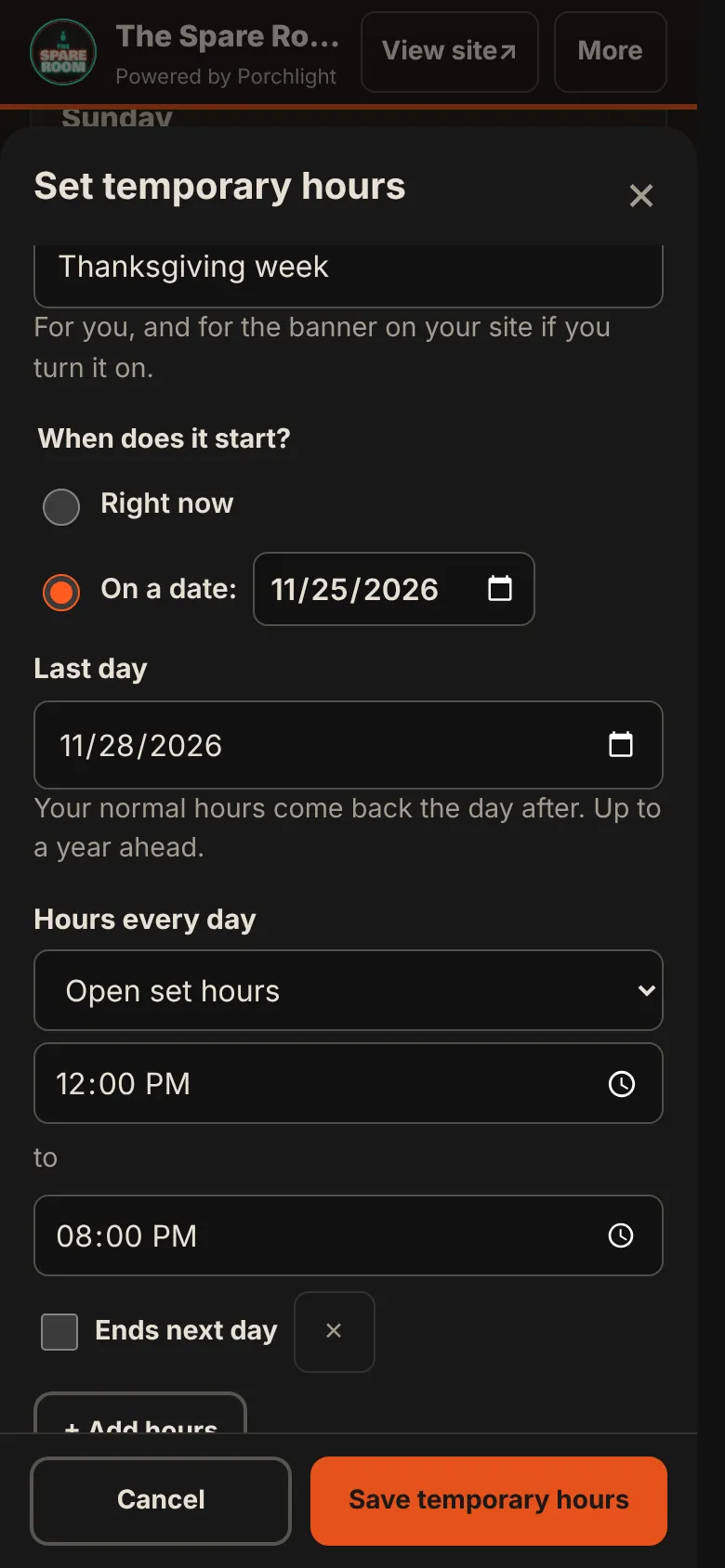
4. Pick when it starts and the last day. Choose Right now, or On a date for something weeks away. Your normal hours come back the day after the last day. You can set dates up to a year ahead.
5. Set the hours, then the exception. Under Hours every day, enter the holiday-week hours. Tap + Add a different date for the day that doesn't fit, such as closed on Thursday. A date always beats the weekday.
6. Check the banner. Show a banner on my website is on by default, with the words written for you. Edit them if you like. The banner shows only while these hours are on.
7. Tap Save temporary hours.
What happens after you save
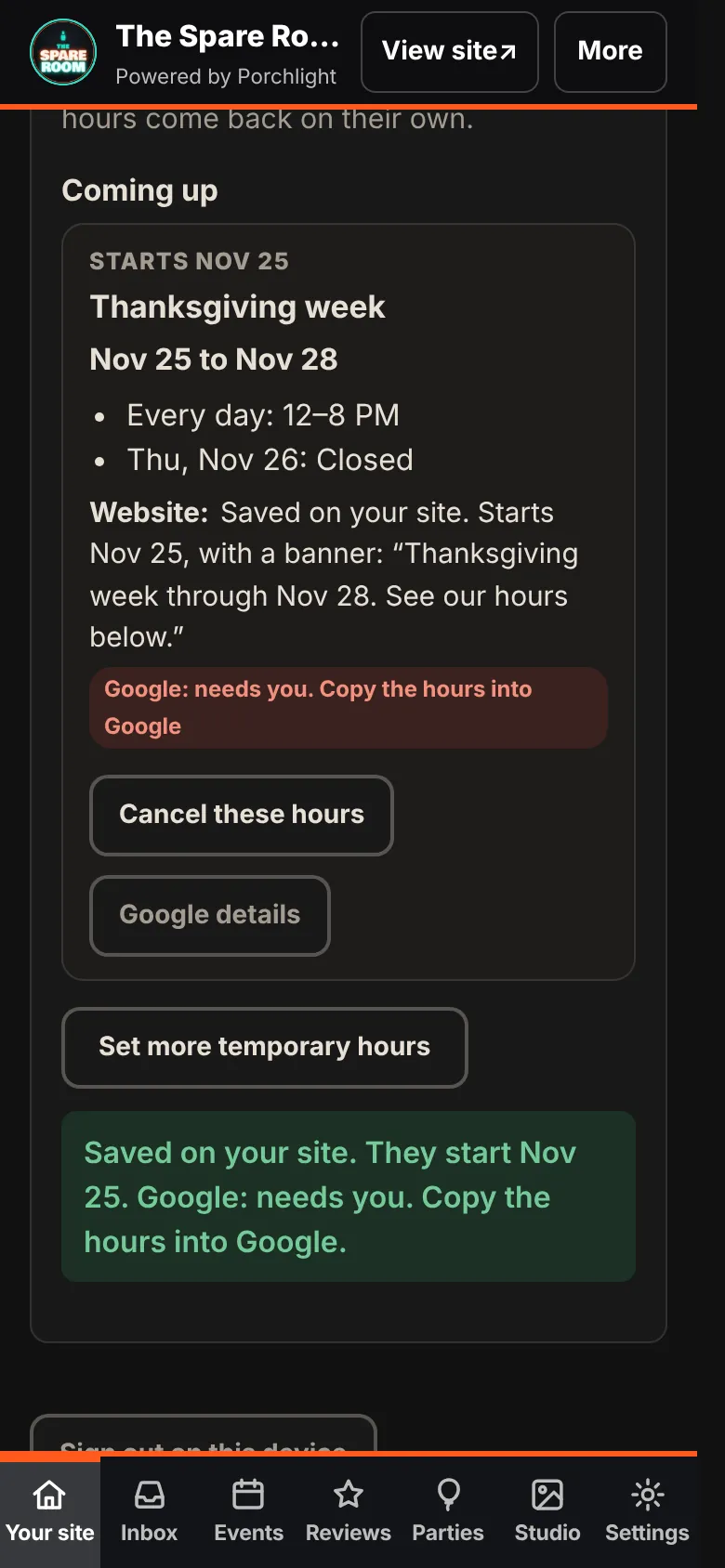
The new hours appear under Coming up, with the dates, the hours, and what the website will show. Nothing changes on your site until the first day. At midnight on that day, your hours table, your open-now line and the banner switch over. The day after the last day, they switch back. Nobody has to remember to undo anything.
You can line up several of these for the season: Thanksgiving, Christmas Eve, New Year's. The manager won't let two overlap. If you try, it names the dates that clash.
On Connected and up, with your email list on, saving also leaves a ready-to-send email in your Inbox listing the holiday hours. It waits for you to send it, or skip it.
If plans change, tap Cancel these hours before they start, or Back to normal hours once they're running. Either is one tap, and the manager tells you exactly what will change before it does it.
Your Google listing
Customers often see your Google listing before your website, so it needs the same hours.
If your plan includes Google (Connected and up) and your listing is connected, the same save is ready to update Google's holiday hours too. The card won't say Google is done until it can see the change on your listing.
If Google isn't connected, the card says Google: needs you. Tap Google details for the exact lines to type, a link that opens Google, and a button to press once you've done it. Facebook doesn't let outside tools change a Page's hours, so change those on Facebook yourself.
Dates worth entering now
| Day | Date | Worth deciding |
|---|---|---|
| Thanksgiving | Thursday, Nov 26, 2026 | Closed, or short hours? What about Wednesday night and Friday? |
| Christmas Eve | Thursday, Dec 24, 2026 | Early close? |
| Christmas Day | Friday, Dec 25, 2026 | Closed? |
| New Year's Eve | Thursday, Dec 31, 2026 | Late night, or early close? |
| New Year's Day | Friday, Jan 1, 2027 | Late open? |
Ten minutes with this table and the manager covers the rest of the year.
What this doesn't do
Temporary hours don't touch your normal week. They don't post anything to social media, and they never email anyone on their own: a suggested email waits for you. For a same-day surprise, like a snowstorm, use Closed today? instead. That's in the next guide.