How to Update Your Menu Without Calling Your Web Person
Change a price, add a dish or reorder sections from your phone, and your site shows it within a minute.
Every plan · Import on Connected and up
In this article
Menus change more often than websites get updated. A price goes up, a dish sells out for the season, the kitchen adds a weekend special. When every change means emailing someone and waiting, the website falls behind the real menu. Customers notice when the price they read isn't the price they pay.
A menu typed as text is also easier for customers to read on a phone than a photo or a PDF, and search engines can read it too. That's why the Porchlight menu is a set of sections and items rather than an upload.
Change an item
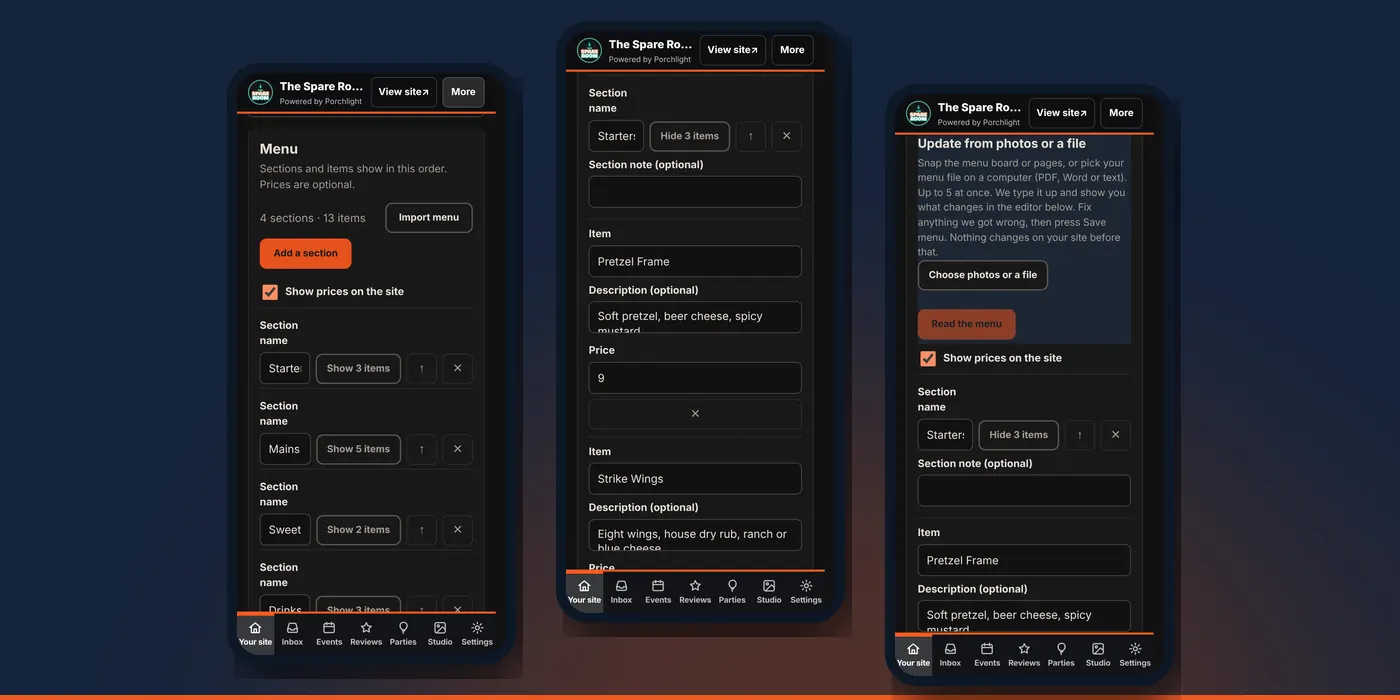
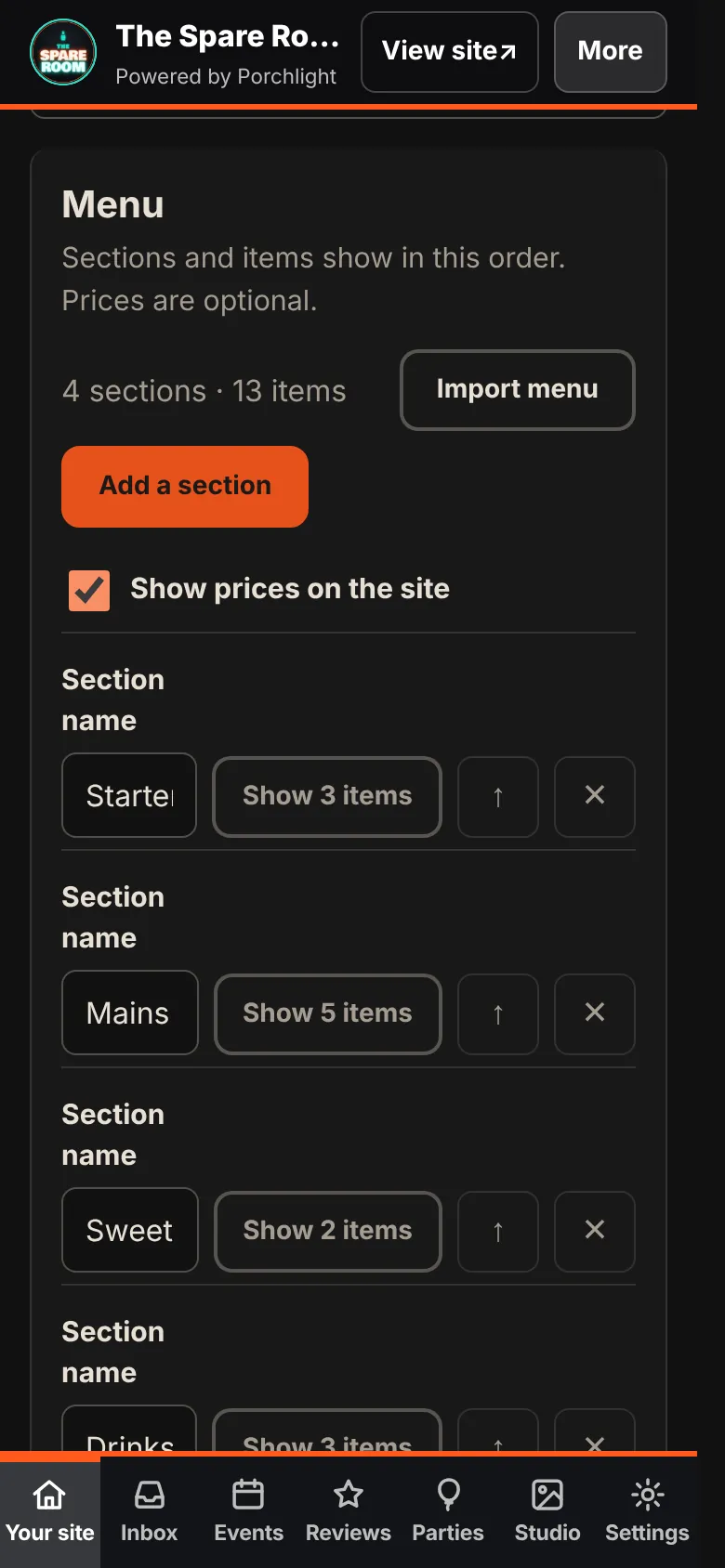
1. Open the Menu section. In the manager, go to Your site and choose Menu. At the top you'll see a count, such as "4 sections · 13 items."
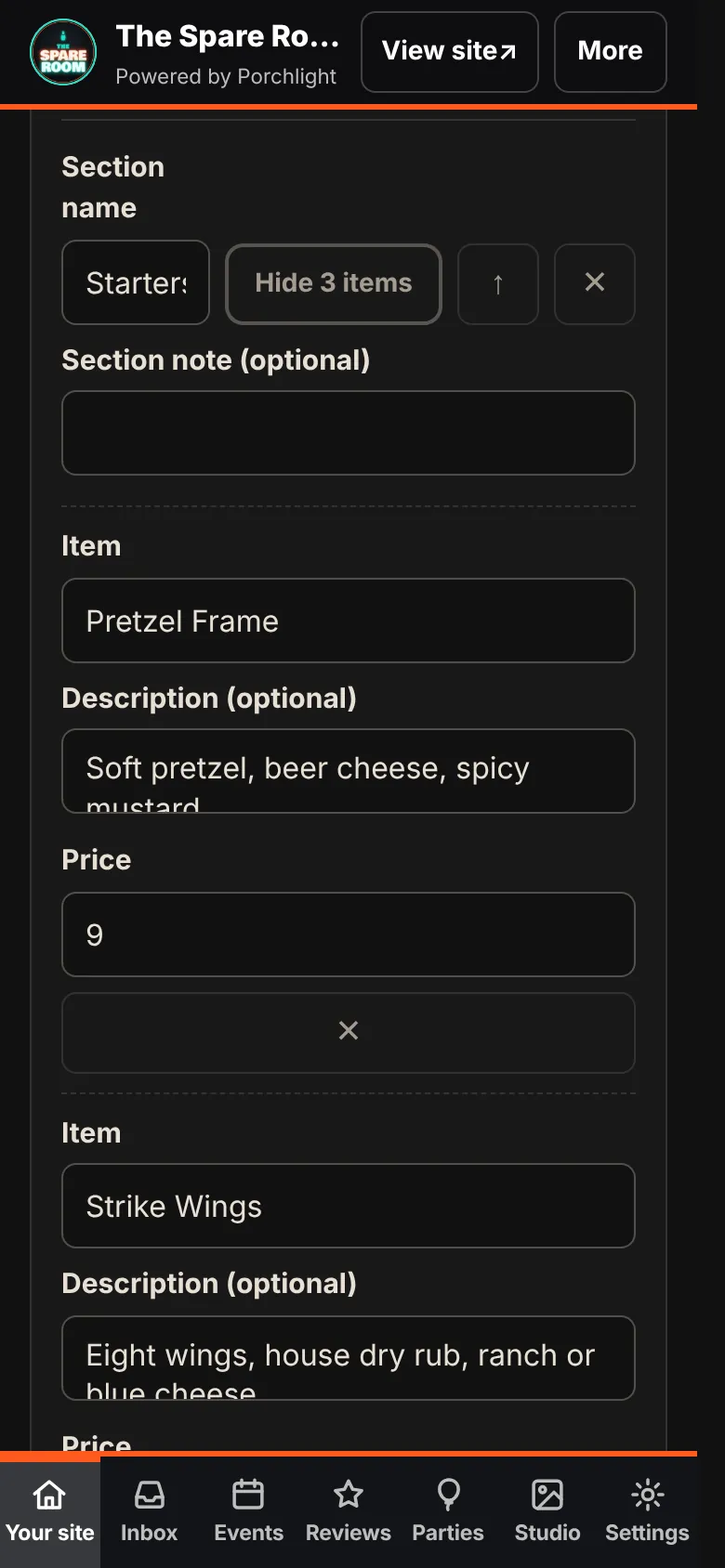
2. Open a section. Each section shows its name and a button such as Show 3 items. Tap it to see the dishes.
3. Edit what changed. Each item has a name, an optional description and a price. Change what you need.
4. Add or remove. + Add an item goes at the bottom of the section. The ✕ next to an item removes it.
5. Save. An Unsaved changes bar appears as soon as you edit. Tap Save changes, or Discard to throw the edits away. Your site shows the change within a minute. On Connected and up, with your email list on, a new dish also leaves a suggested email in your Inbox. It waits for you to send or skip it.
Arrange sections
Sections and items show on your site in the order you see them. The ↑ button moves a section up. Add a section creates a new one, for example "Fall specials." A Section note under the name is handy for "Served after 5 PM" or "Ask about gluten-free bread."
Prices on or off
Some places would rather not show prices online, or only show some. Show prices on the site turns them all on or off at once. An item with no price simply shows without one.
Update from photos or a file
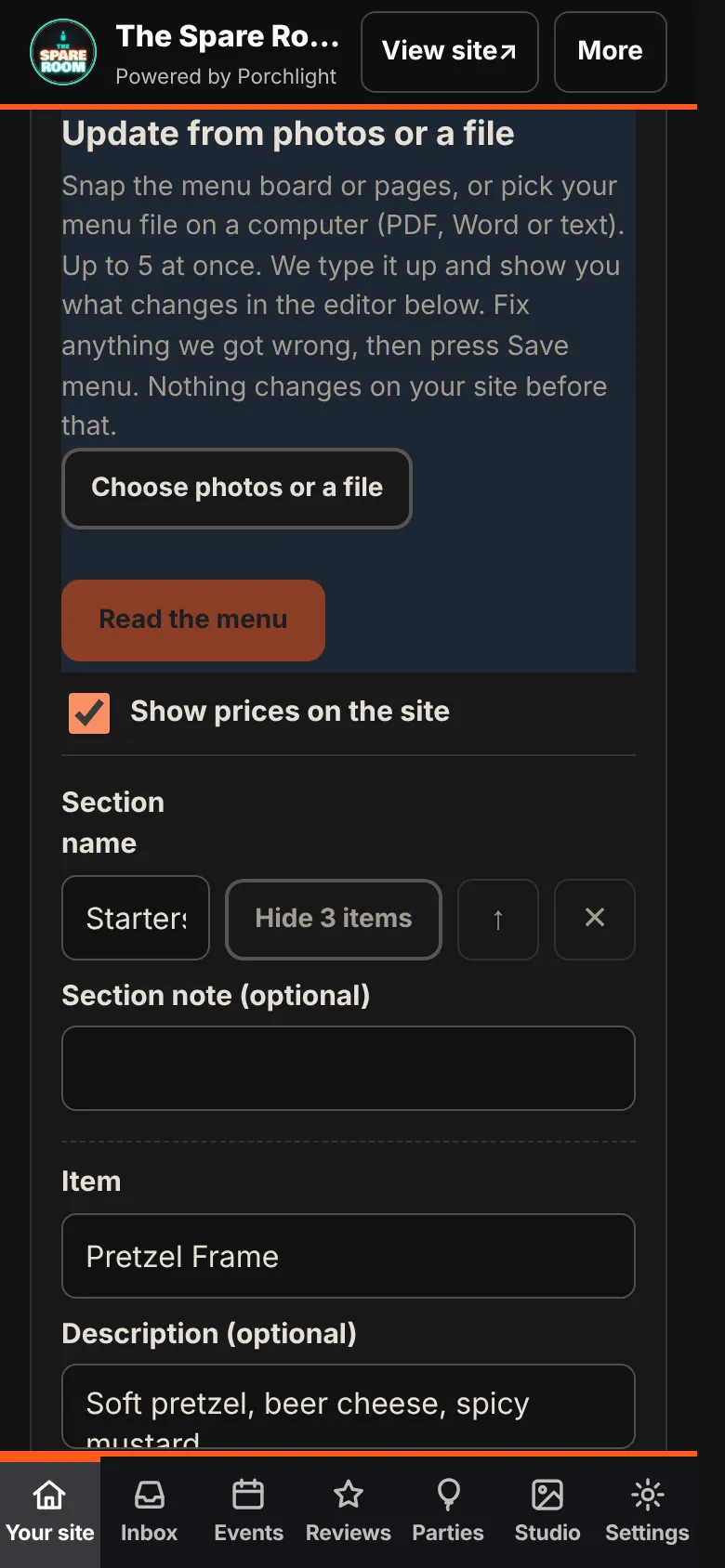
On Connected and up, Import menu saves retyping. Snap the menu board or the printed pages, or on a computer pick your menu file (PDF, Word or plain text), up to five at once. Tap Read the menu. The manager types it up and shows you what would change in the editor below.
Check it before you save. Fix anything that was read wrong, especially prices. Nothing reaches your site until you tap Save menu.
Good habits
- Change the menu the day the kitchen does, not when someone complains.
- Use descriptions for what people ask about. Spice level, what comes on the side, what's local.
- Keep section names plain. "Starters" helps a hungry person more than a clever pun.
For the things that change daily or weekly, such as a soup of the day or a Tuesday deal, use specials and weekly nights instead of editing the menu.