Get Photos and a Bio From Your Bands Without Chasing Them
The Green Room keeps every band that plays your room in one place. One link gets you their photos, bio and video.
Venue Max
In this article
A show is two weeks out and you still don't have a decent photo of the band. You text the bandleader, he sends something blurry, and the bio is a paragraph from an old Facebook page. Then the poster goes out late, or goes out with no photo at all.
The Green Room is where that stops. Every act that plays your room has a line of its own, and getting what you need from them is one message with one link in it.
Bring your bands in
1. Open Green Room in your manager. The first time, it tells you how many acts it found on your calendar and offers Bring them in. It shows you the list first. Untick any you don't want, then add them.
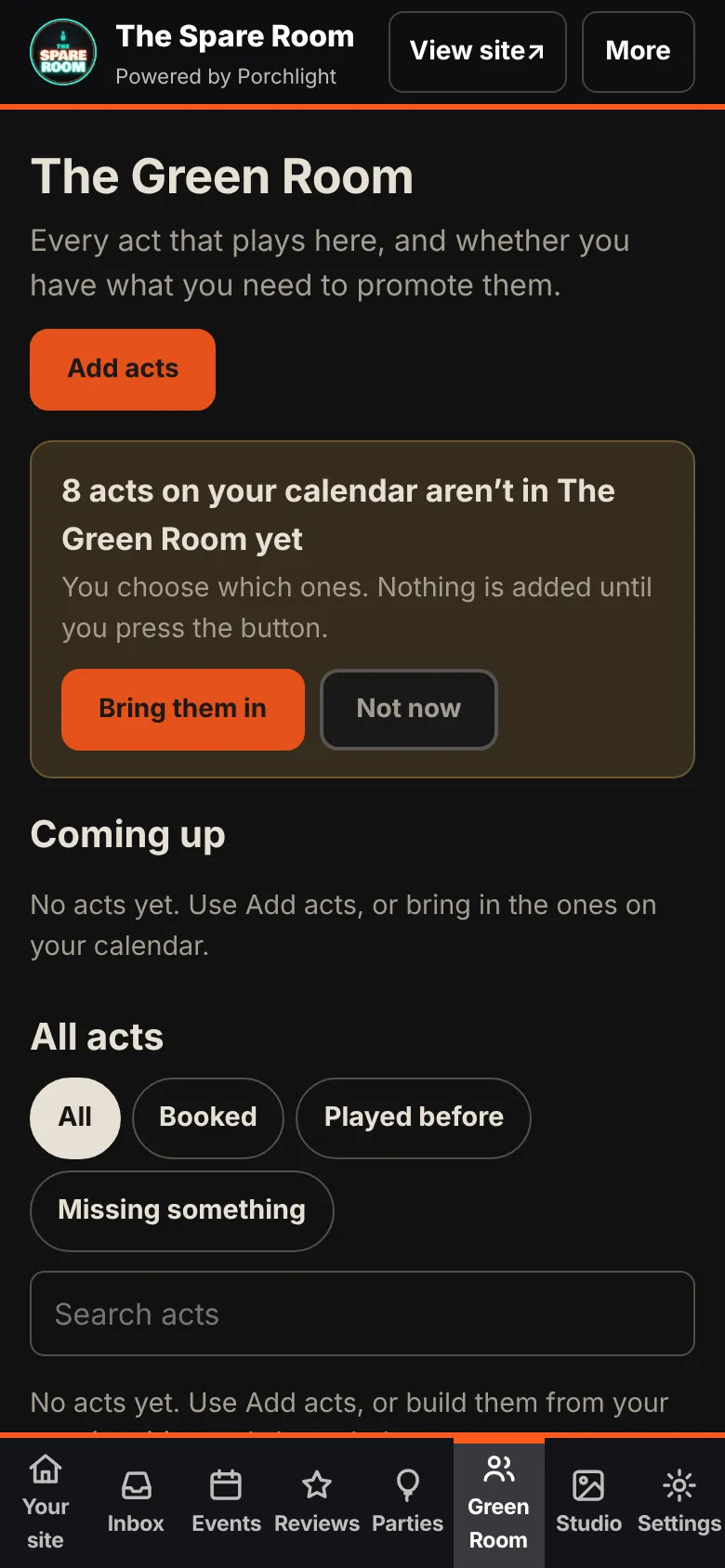
Nothing goes on your website yet. After that, a band that fills in your booking form gets a line by itself.
Ask a band for what's missing
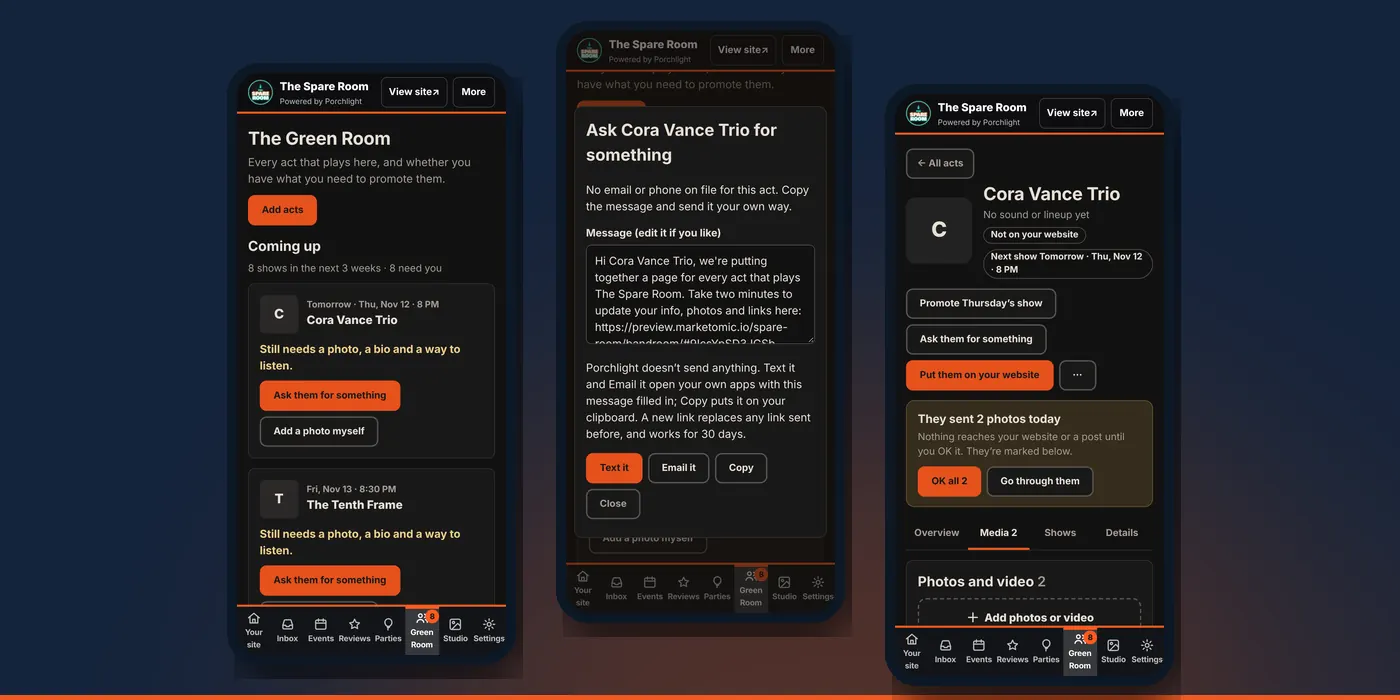
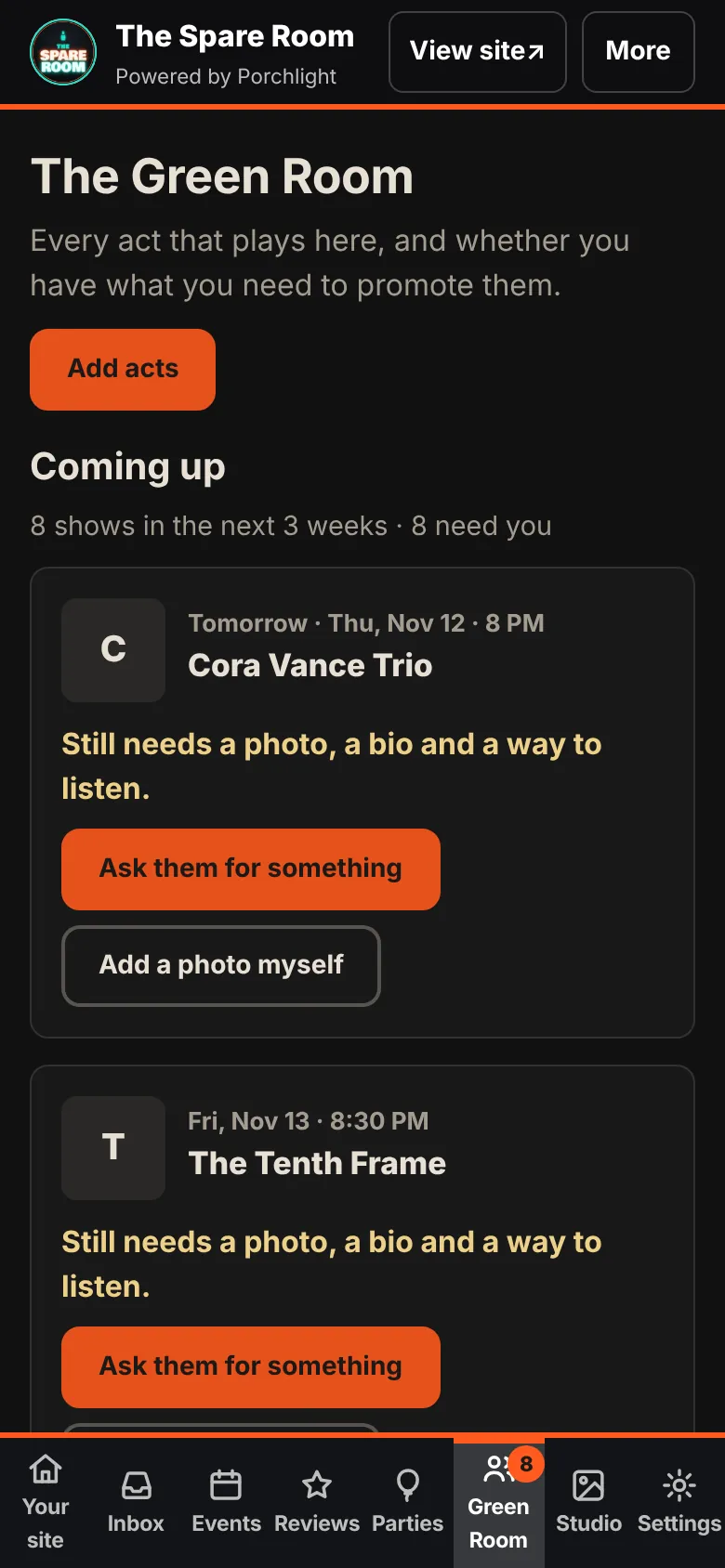
2. Look at Coming up. Each act with a show in the next three weeks has a card with one line on where things stand, like "Still needs a photo, a bio and a way to listen."
3. Tap Ask them for something. You get a short message with their private link in it. Change the words if you like.
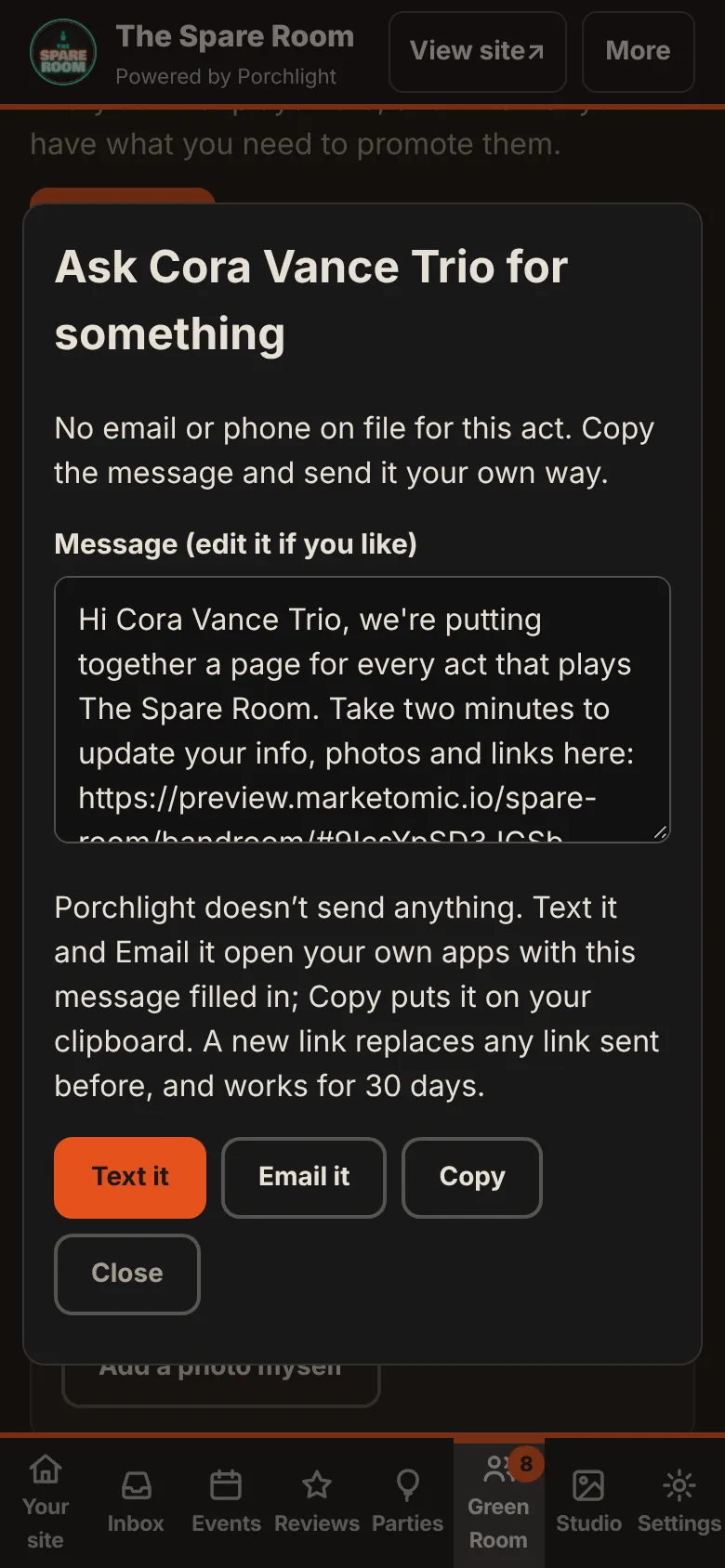
4. Send it your way. Text it and Email it open your own phone or email app with the message filled in. Copy puts it on your clipboard for anywhere else. It comes from you, from your number or your address.
The link works for 30 days. Asking again makes a new link, and the old one stops working right away.
What the band sees
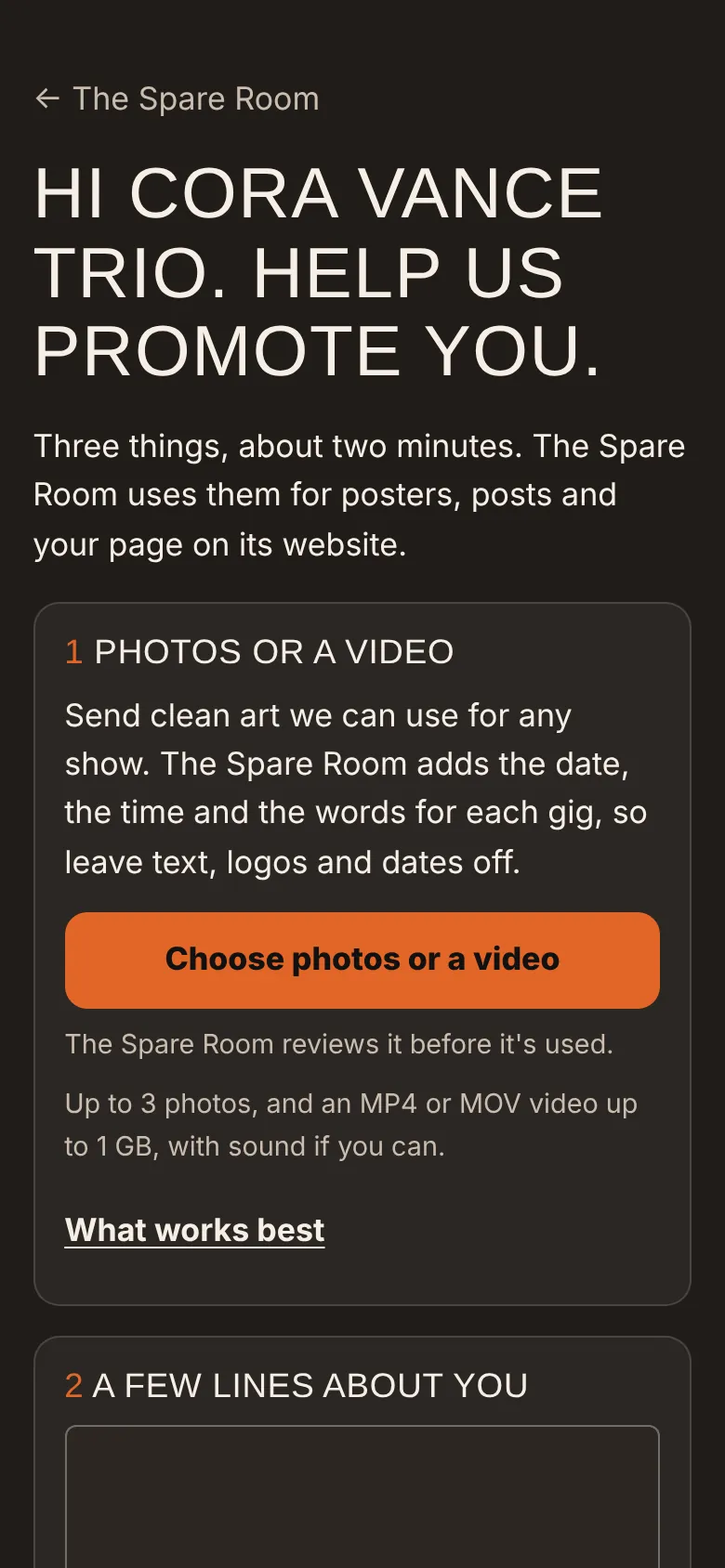
A short page with three things on it: photos or a video, a few lines about them, and one place to hear them. They add up to three photos from their phone, write the bio, and tick a box that says your place may show the public parts on its website. No account and no password.
The page asks for clean photos and video with no text, logos or dates on them, because you add the show details yourself. It asks for sound on video and tells them what sizes and lengths work best.
OK what they sent
5. Open the act. When a band sends something, their card changes to Review what they sent. The act's page says what came in.
6. Tap OK all, or Go through them to OK or remove each one. If you remove a photo, the band isn't told.
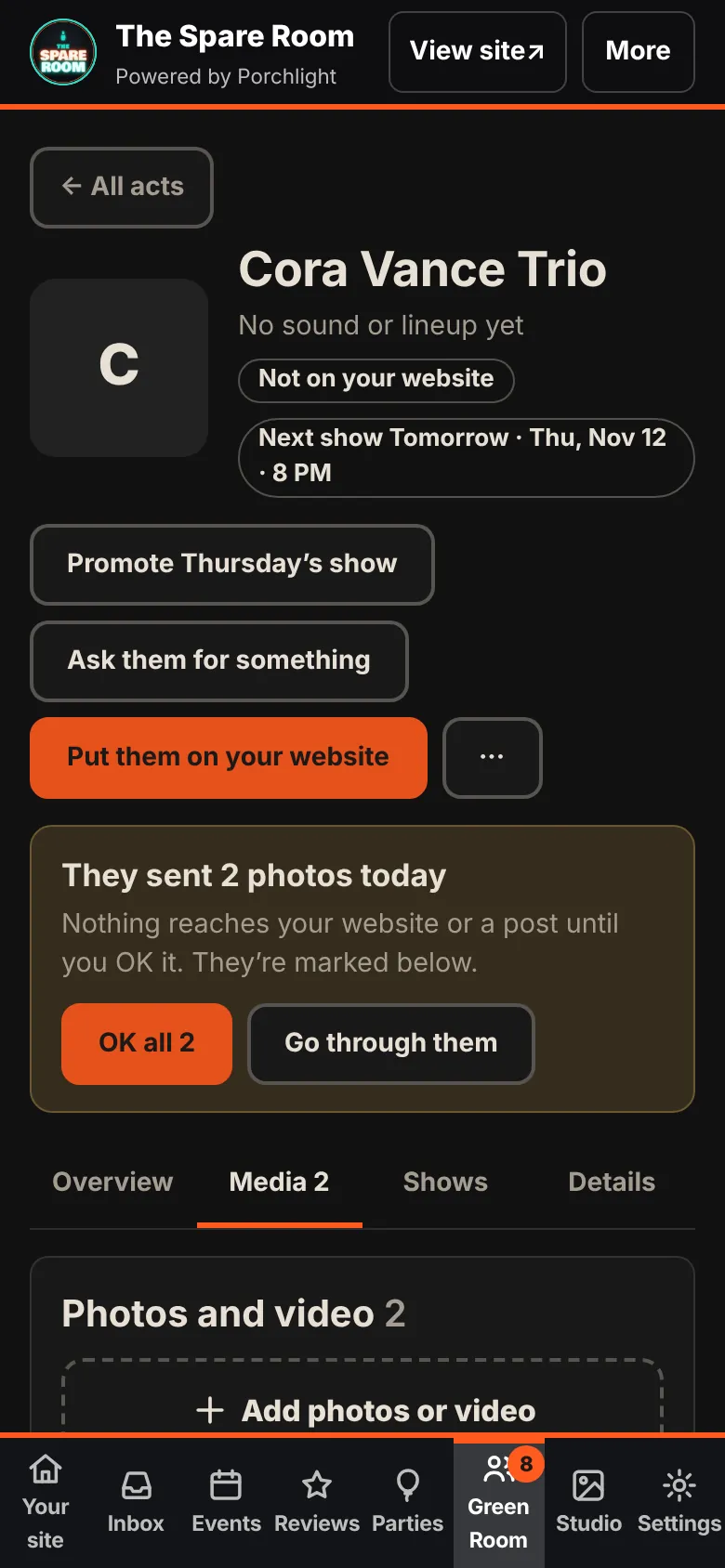
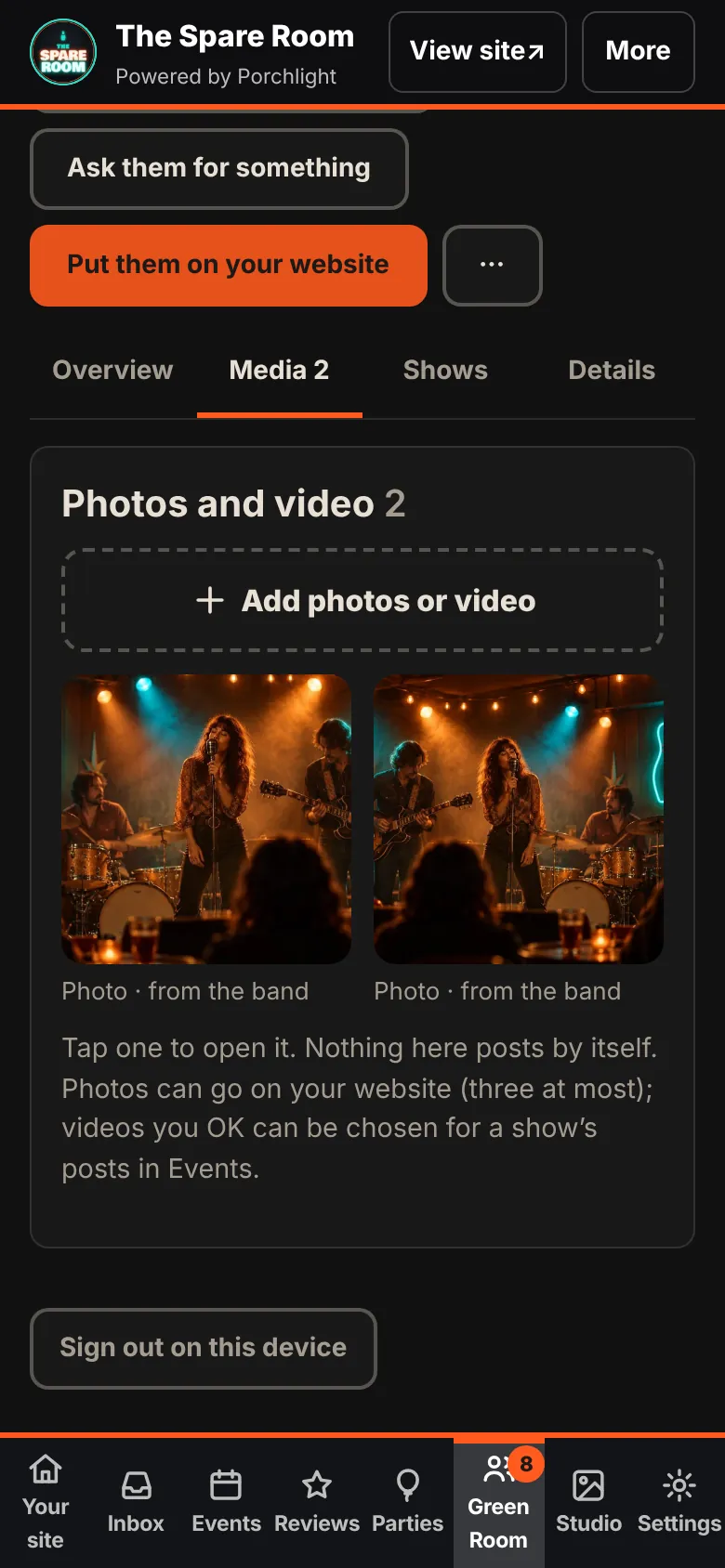
Nothing a band sends reaches your website or a post until you OK it.
Photos and video in one place
Each act has one gallery: what the band sent, what you added yourself, and pictures from their past shows with you. Tap a picture to show it on your website, make it the profile photo, or remove it. Your website shows three photos for an act. The gallery holds more.
A video you've OK'd can be picked for that show's posts in Events.
Put an act on your website
Open the act and tap Put them on your website. Their page shows the name, a short bio, where they're from, their links, up to three photos and one song or video. Phone numbers, emails and your own notes stay private. Hide from my website takes the page down at once.
Your Acts page shows up by itself once three acts are on your website.
If a band asks you to remove their information
Open the act, go to the bottom and tap Delete this act. It asks once more. Their private details, private link and public page are removed. Your past shows keep the act's name. This can't be undone.
For the request that starts it all, see band and party inquiries. For the show itself, see add a show once.
What this doesn't do
Porchlight doesn't send the text or the email; your phone does, when you press Send. It doesn't post anything: the graphic and the posts for a show are still made in Events. It doesn't put a band on your website until you say so, and it can't without the band's tick. A photo from the gallery can't be picked for a post yet. Videos can.