Your First 15 Minutes in the Porchlight Manager
Sign in, put the manager on your home screen, check the details customers rely on most, and learn where everything lives.
Every Porchlight plan
In this article
The manager is the part of Porchlight you'll use. It's a web page made for your phone, behind a sign-in, where you change your hours, menu, specials and everything else on your site. Fifteen minutes the first time makes every update after that quick.
Sign in
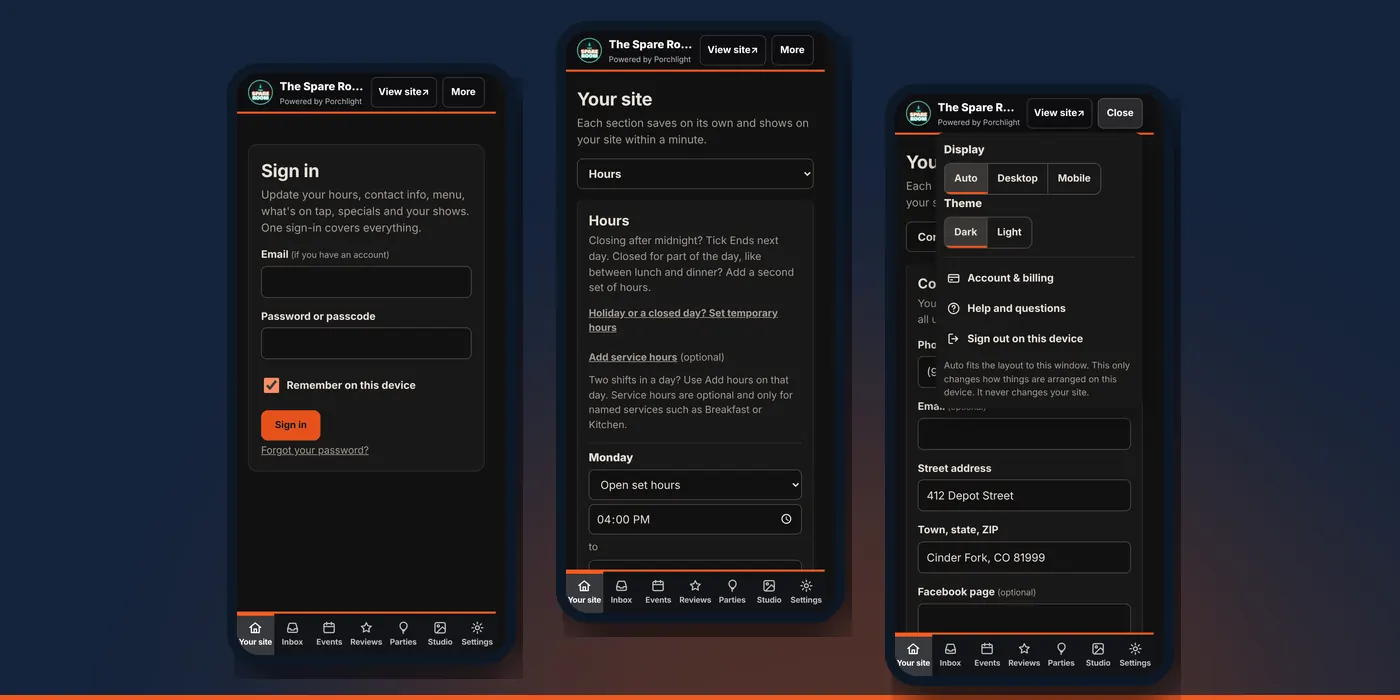
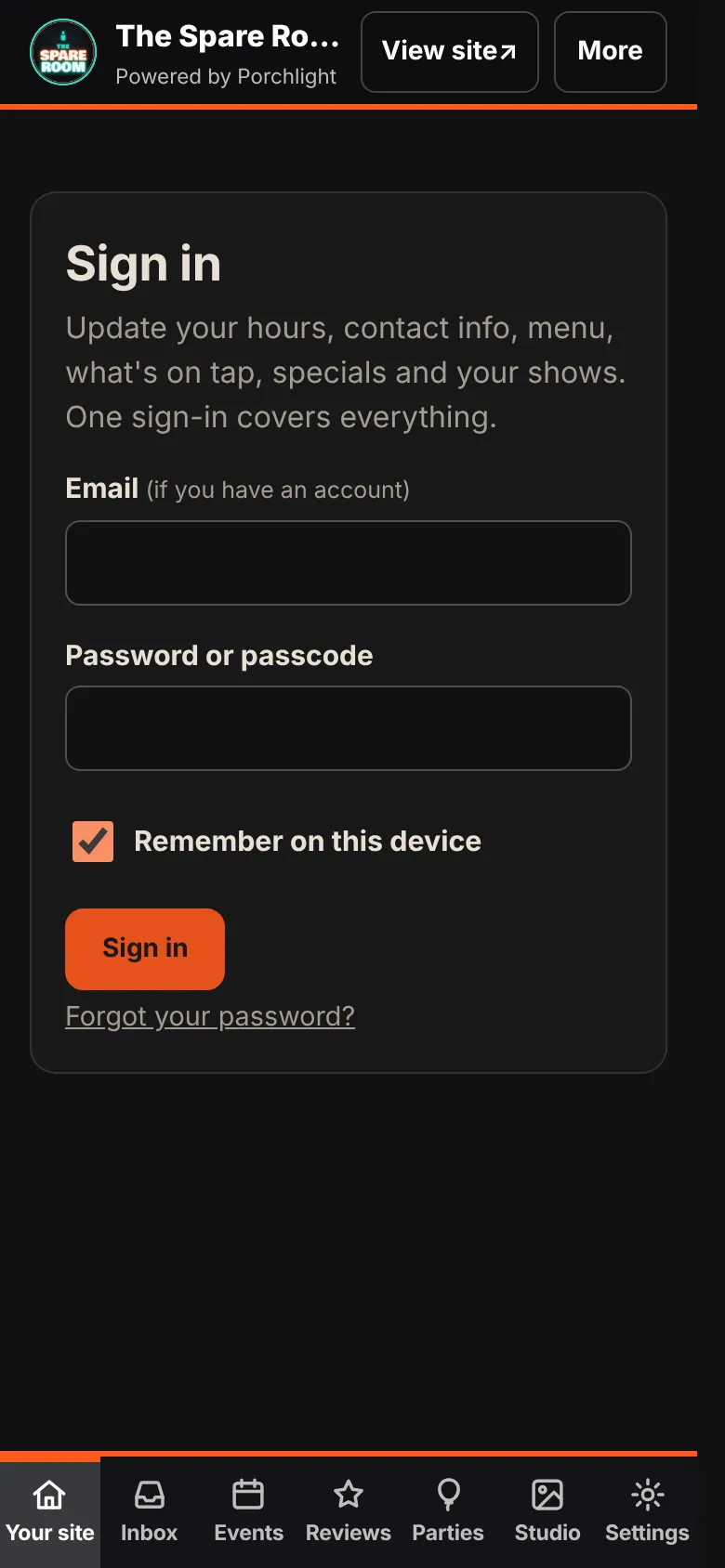
Your welcome email has a link to set your password. After that, sign in with your email and password. Leave Remember on this device ticked on your own phone so you don't have to type it every time. If you forget the password, tap Forgot your password? for a reset link.
Put it on your home screen
Treat the manager like an app. Open it in your phone's browser, then:
- iPhone (Safari): tap the Share button, then Add to Home Screen.
- Android (Chrome): tap the menu (three dots), then Add to home screen.
Now it's one tap away when you're snowed in or the kitchen runs out of something.
Find your way around
The tabs along the bottom are your map:
- Your site holds everything on your public page: hours, the notice, specials, weekly nights, the menu, contact details and, for breweries and bars, what's on tap. On Connected and up, your Email list is here too. Pick a section from the list at the top. When you change something, an Unsaved changes bar appears: tap Save changes (or Discard). Your site shows it within a minute.
- Inbox collects the things that need your answer: inquiries, suggested emails to your list, posts waiting for your OK and your own to-dos.
- Reviews is on Connected and up: replies to your Google reviews, drafted for you to approve.
- Events and Parties are for the Venue plans: shows, band inquiries and private-party requests. Studio, for show posters, is on Venue Max.
- Settings has your connected accounts, service hours such as kitchen or breakfast hours, and preferences.
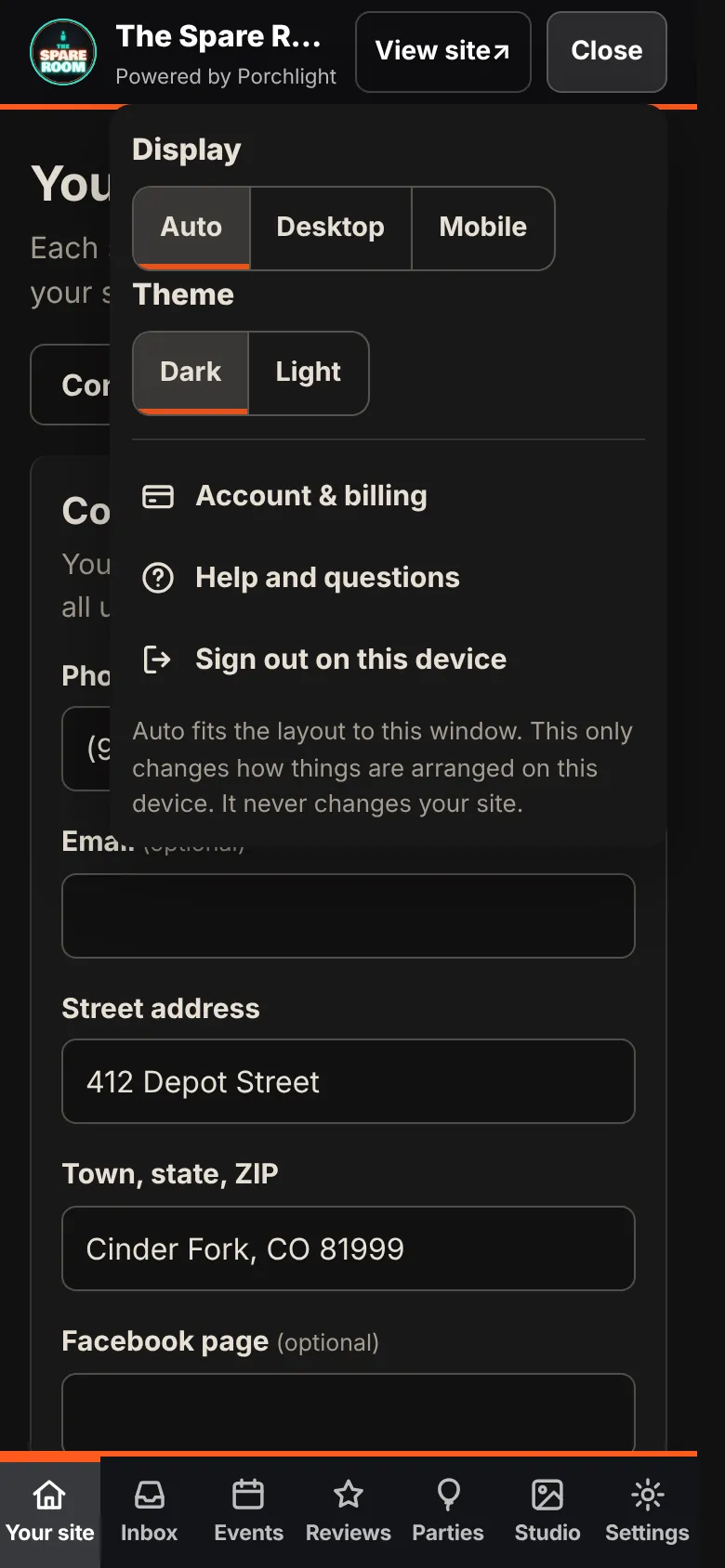
View site at the top opens your public page so you can check a change. More has the display options (dark or light), Account & billing, Help and questions, and Sign out on this device.
Check the details customers use most
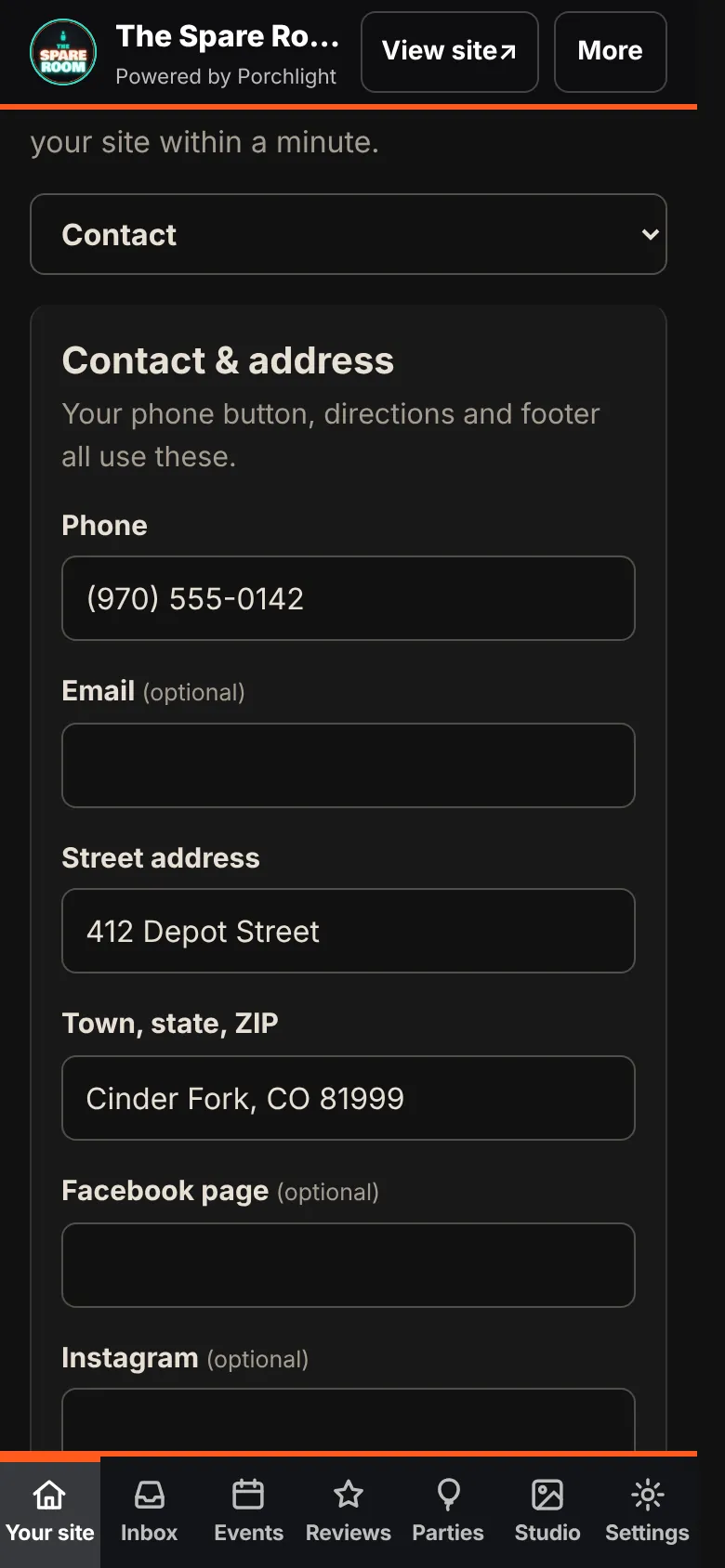
Before anything else, open Contact and read every field as a customer would:
- Phone. It's what the call button dials. Is it the number someone actually answers?
- Street address and town. The directions button uses them.
- Email, Facebook and Instagram. They're optional, but if you fill them in, make sure they're the accounts you keep up.
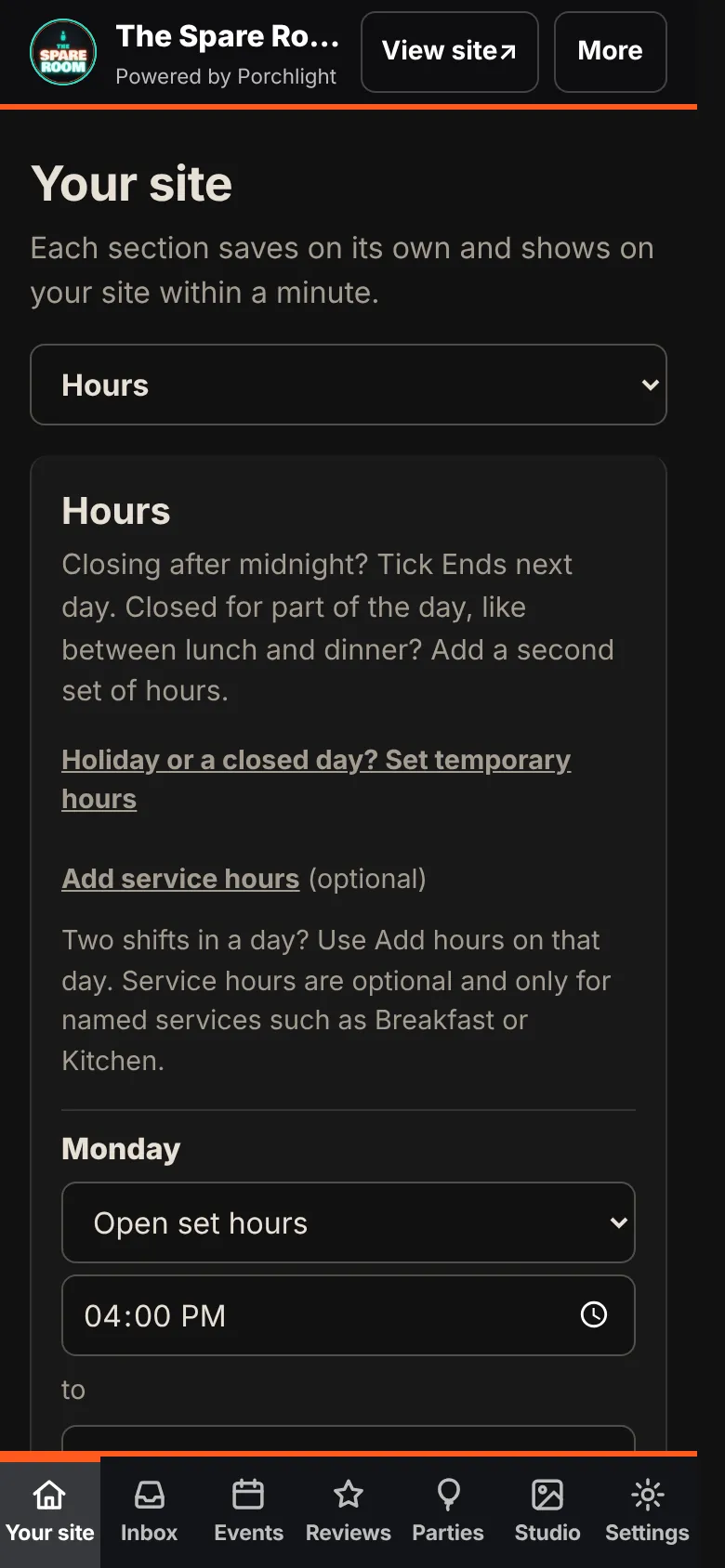
Then open Hours and confirm the normal week. If you close after midnight, tick Ends next day. If you close between lunch and dinner, use + Add hours for a second set that day. If the kitchen keeps different hours from the door, add them as service hours.
Then set yourself up for the season
Two guides cover what most owners need first: setting holiday hours ahead of time, and what to do when you have to close today. After that, the menu, specials and weekly nights and, for bars and breweries, the tap list. On the Venue plans, start with adding a show and band and party inquiries.
When you're stuck
Use Help and questions in More, or reply to your welcome email. Tell us what you were trying to do and what happened instead. That gets a fix fastest.